McAvatarMaker
Transparent Minecraft PFP
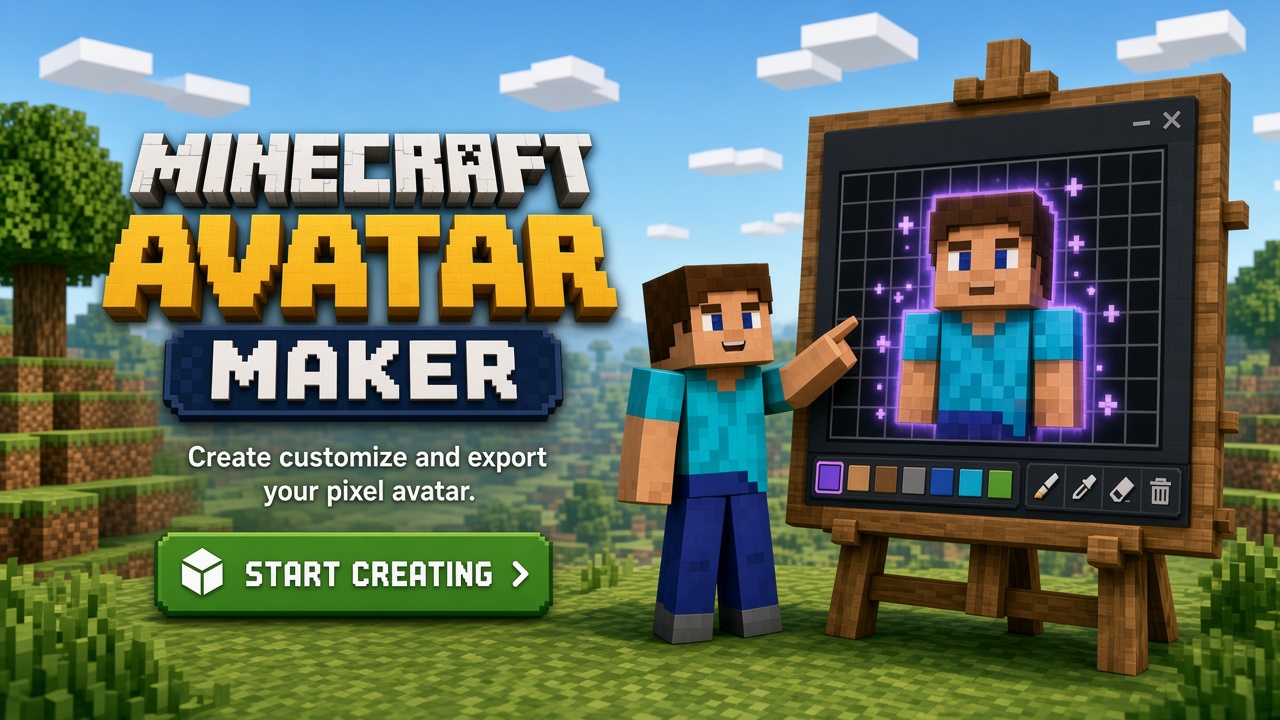
Need a transparent Minecraft PFP? This tutorial explains when alpha matters, how to clear pixels with the editor’s transparent eraser, and how to export a PNG that keeps those empty cells. Open <a href="/minecraft-avatar">Classic</a> or <a href="/editor/v2">MC Avatar Editor V2</a>. Honest limits: we help you paint and export a head PNG with transparency — we do not promise fake one-click skin-UV cutouts or magic background removal from photos. This is not a re-skin of the noindex <code>/avatar-png-maker</code> synonym page. Extra tutorial depth: alpha vs circle-mask decision tree, eraser→PNG checklist, and explicit non-clone stance versus avatar-png-maker.
Eraser + PNG alpha — Classic or V2, honest transparent PFP tips How-to guide · Classic editor
What “transparent Minecraft PFP” really means
Searchers typing “transparent minecraft pfp” usually want a square Minecraft-style face PNG whose unused pixels are true alpha (see-through), not a flat white or black box. That matters for overlays, video thumbnails, stickers, and some forum themes. Many social apps still mask a square into a circle and ignore corner alpha — so transparency is not always required for Discord or TikTok alone.
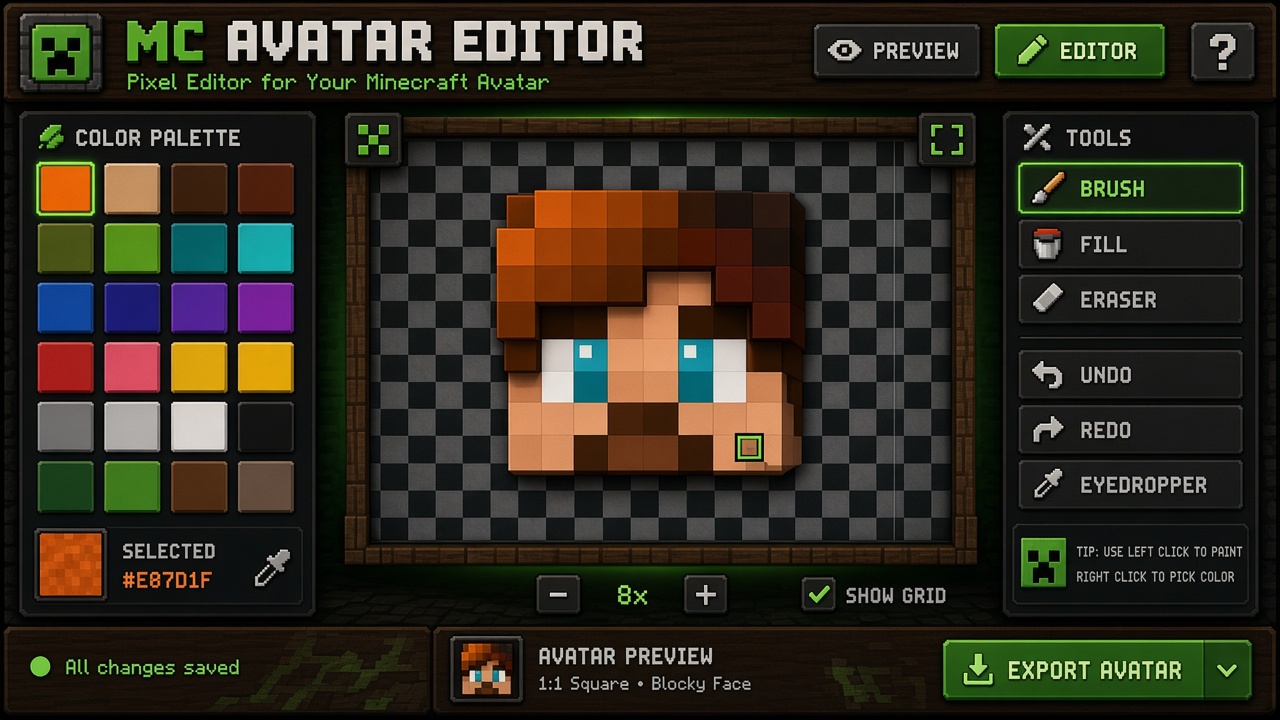
On McAvatarMaker, empty cells are transparent. The palette includes a transparent / eraser mode: paint with it to clear pixels. Export PNG preserves that alpha. You still hand-paint the face; transparency is a pixel state, not an AI cutout.
This page is a tutorial-style landing into the same free editors. It is intentionally different from synonym tool shells like avatar-png-maker (kept noindex). Here we teach when to use alpha, how eraser+export works, and how circle masks differ from true transparency.
Strong editor entry points: <a href="/minecraft-avatar">Classic editor</a> and <a href="/editor/v2">Editor V2</a>. Crop geometry without alpha: <a href="/circle-pfp">circle PFP</a>. Full how-to hub: <a href="/how-to-make-a-minecraft-pfp">how to make a Minecraft PFP</a>.
When you need alpha vs when a circle mask is enough
Use true transparency when you place the head over a colored banner, stream overlay, presentation slide, or sticker sheet where a white box would show. Skip obsessing over alpha when the only destination is Discord/TikTok profile upload — those UIs apply their own circular (or rounded) mask on a square image, and opaque corner pixels are usually cropped visually anyway.
Instagram, Twitch, and YouTube profile chips likewise care more about center-weighted faces than checkerboard corners. If your only job is “look good in the app circle,” paint opaque and follow <a href="/circle-pfp">circle PFP</a> / platform pages.
If you need both, keep two exports: an opaque everyday PFP and a transparent overlay version with erased corners or background field. Do not overwrite your only master file.
Alpha does not replace contrast. A transparent PNG with muddy eyes still fails at 32 px. Fix silhouette first, then clear unused pixels.
Transparent eraser + PNG export workflow
Open Classic or V2. Paint skin, eyes, and hair as usual. Select the transparent swatch / eraser tool and clear pixels you do not want in the final file — often outer corners, or a full backdrop if you painted a temporary flat for contrast checking.
Checkerboard UI cells mean empty/alpha. Fill and brush with opaque colors for the face mass. Undo if you erase an eye by mistake. Preview still shows the head; empty cells stay empty.
Export PNG from the toolbar. Confirm in an external viewer that corners show transparency (checkerboard or underlying desktop). Avoid re-saving as JPEG — JPEG destroys alpha and softens pixels.
We do not auto-trace a full-body skin UV into a cutout sprite, and we do not claim one-click “remove Minecraft skin background” magic. Head-grid eraser + PNG only.
Honest limits (not fake UV cutout / not avatar-png-maker clone)
No photo background remover. No automatic full-skin UV circle crop. No username→transparent 3D head. No promise that every social network will display corner alpha inside their mask.
Independent fan-made editors — not affiliated with Mojang/Microsoft. For size suggestions across Discord/IG/TikTok, see the how-to hub’s Minecraft PFP size section.
Alpha literacy without fake cutout promises
Transparent Minecraft PFP intent is tutorial-shaped: when alpha helps, how eraser clears cells, and how PNG keeps empty pixels. It is not a synonym shell of avatar-png-maker and not a photo background remover.
Platform circle masks often make corner alpha irrelevant for Discord/TikTok/Instagram profile chips. Teach both paths: opaque square for everyday PFPs, erased corners for overlays and stickers.
Operational checklist: paint face → erase unused cells → export PNG → verify checkerboard in an external viewer → never JPEG-flatten. Keep an opaque master file beside the alpha export.
Strong CTAs to Classic and V2 keep the page product-true. Link circle-pfp and how-to size notes instead of duplicating every platform essay.
How to export a transparent Minecraft PFP
-
Open Classic or V2
Free 16×16 editors with transparent eraser support.
-
Paint the face
Lock contrast on eyes and hair before you clear pixels.
-
Erase unused pixels
Use the transparent eraser/swatch on corners or backdrop cells.
-
Export PNG (keep alpha)
Download PNG; do not re-encode as JPEG. Verify transparency externally.
Transparent Minecraft PFP FAQ
Transparent Minecraft PFP
Jump into either free editor — same 16×16 head workflow, PNG export when you are ready.