McAvatarMaker
Minecraft Discord Avatar
Need a Minecraft Discord avatar that still looks sharp in a tiny circle? Use this free maker to paint a 16×16 blocky head, stress-test contrast for Discord’s dark UI, and export a clean PNG for your profile or server nickname. Extra depth on this URL: nitro size vs clarity, written for server nickname pairing, with the same free paint-and-export path as our other Minecraft head landings.
Make a Discord-ready Minecraft head in Classic or V2 How-to guide · Classic editor
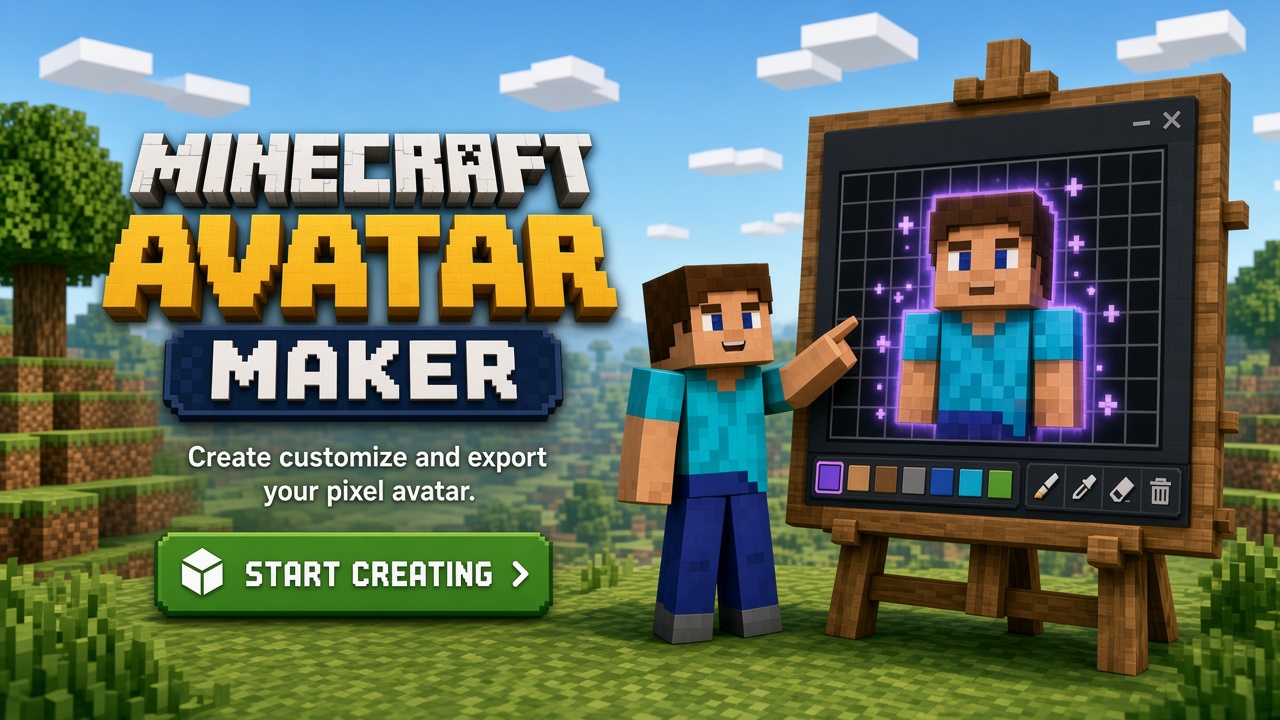
Built for Discord-sized Minecraft faces
Discord shrinks avatars hard. A Minecraft Discord avatar only works if eyes, hair, and skin still read after that shrink. This page targets that job: a dedicated 16×16 head workflow optimized for profile clarity, not a full-body skin studio.
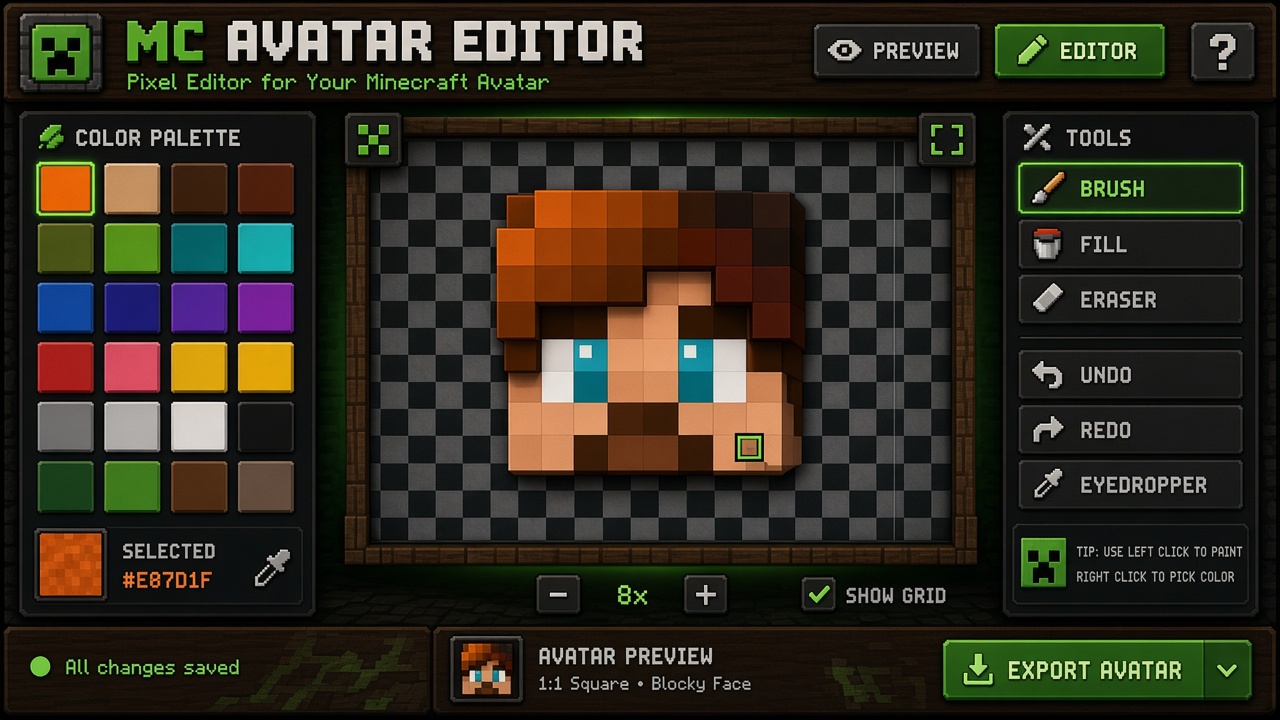
Open Classic for precise pixel tweaks or MC Avatar Editor V2 for faster blocking with fill and a Minecraft-inspired tool strip. Both export the same kind of square PNG you upload to Discord.
No Mojang login is required to create or download. Discord only needs the PNG file. Optional site accounts store history; they do not gate a first export.
How to keep a Minecraft Discord avatar readable
Prioritize silhouette and eye contrast over tiny ornaments. Speckles that look fun on a zoomed canvas often turn to mud at Discord icon size. Treat the head like a logo.
Test mentally on dark Discord chrome: near-black hair on a dark theme needs a lighter rim or skin contrast. Mid-tone outlines help the head stay visible on both dark and light themes.
Slightly exaggerated eye spacing or a unique hair cut helps friends find you in a crowded member list. Export once, then reuse the same PNG across Discord, forums, and other socials for a consistent identity.
A practical Discord avatar workflow
Block skin → place eyes → shape hair → add at most 1–2 accent pixels → squint at the preview → export PNG → upload in Discord User Settings. Keep a backup of the file so seasonal themes do not force a rushed redesign.
Optional: keep a “main” and “event alt” export. Account save on this site is optional. If you want inspiration without copying, browse the public gallery, then invent your own silhouette.
Screenshotting an in-game head often includes lighting, soft edges, and UI. Painting a dedicated Discord PFP usually survives Discord’s re-encode better.
Avatar vs full Minecraft skin
A Minecraft Discord avatar is a square profile face. A full Minecraft skin is a larger UV with body parts. This tool stays on the head so Discord users get a fast, honest path to a usable PFP.
When you later want an in-game skin, export the face here as a reference and continue in a full-skin editor. For Discord alone, the head PNG is the complete deliverable.
Going deeper on Discord avatar specifics
This Discord avatar specifics page exists so searchers who typed that exact phrase land on honest instructions, not a thin app chrome. The canvas behind the CTAs is still the same free 16×16 Minecraft-style head editor (Classic or MC Avatar Editor V2). What changes here is the advice: nitro size vs clarity, aimed at server nickname pairing.
AdSense and human reviewers both flag cookie-cutter landings. So this section stays specific to Discord avatar specifics: we talk about nitro size vs clarity instead of pasting the same “What / Tips / Limits” paragraph used on sibling URLs. If another page on this site covers a nearby keyword, use the Related tools list — do not treat every landing as a duplicate product.
Practical workflow on this route: open Classic for a quiet grid or V2 for palette/fill/undo, block large shapes first, protect eye contrast, then export PNG when the square preview still reads at thumbnail size. Skip username→3D skin fetch claims — that is out of scope on McAvatarMaker and would be misleading advertising.
Limits stay honest for Discord avatar specifics: you get a square head / face PNG, not a full-body skin UV, not Mojang login, and not a photo-to-pixel AI pipeline. Optional account save stores history on this site; export itself does not require payment. McAvatarMaker is an independent fan-made browser tool and is not affiliated with Mojang Studios or Microsoft.
When you finish a face for server nickname pairing, keep a brighter and a darker PNG variant if you use both light forums and dark Discord/Twitch themes. Revisit the blog guides on Discord readability and 16×16 pixel tips if the export turns muddy after platform compression.
How to make a Minecraft Discord avatar
-
Open a free editor
Start Classic or MC Avatar Editor V2 from the buttons on this page.
-
Design for Discord scale
Paint a 16×16 head with bold eyes and a clear hair silhouette. Skip details that vanish when small.
-
Stress-test on dark UI
Check the preview as if it sits on Discord’s dark theme. Fix muddy edges before you download.
-
Export PNG and upload
Download the square PNG, open Discord User Settings → Profile, and set your new avatar. Keep a backup copy.
Minecraft Discord avatar FAQ
Minecraft Discord Avatar
Jump into either free editor — same 16×16 head workflow, PNG export when you are ready.