McAvatarMaker
How to Make a Minecraft PFP
Want a Minecraft-style profile picture without guessing tools? This hub walks you through how to make a Minecraft PFP by hand-painting a 16×16 face, checking the live preview, and exporting PNG. Open the Classic grid or MC Avatar Editor V2 from the buttons below — same head workflow, free in the browser. This is not a username→skin lookup and not a 3D renderer. Extra how-to depth on this hub: Steve-proportion practice, PFP size, skin-to-head, hat-layer, hair, shading, beard, mustache, freckles, scar, bandage, jacket-layer, sleeve-layer, gloves, pants-layer, boots, skirt, hoodie, glasses, mask, ears, horns, headphones, crown, bowtie, bandana, rose, outline, tie, paws, tophat, cowboy-hat, outer-layer, outer-layer-not-showing, remove-outer-layer, skin-template, upload-skin, classic-vs-slim, save-export-skin, skin-size, legacy-64x32, java-bedrock-skin, change-pfp, and bedrock-profile-icon H2s.
How-to hub — open Classic or V2 and paint your PFP How-to guide · Classic editor
What “make a Minecraft PFP” means here
A Minecraft PFP is usually a square (or circle-cropped) profile image that still reads as a blocky Minecraft head. On this site you make that look by painting the face yourself on a 16×16 grid, then downloading PNG. Platforms like Discord, TikTok, Twitch, Steam, and YouTube accept the same kind of square upload — they crop or scale; you design for clarity when small.
Searchers typing “how to make a Minecraft PFP” often mix three jobs: find a free editor, learn a short paint order, and avoid tools that promise magic from a gamertag. This page answers all three in one place, then sends you into Classic or V2 to actually draw.
Keep expectations honest. You place every pixel. There is no automatic pull from Mojang/Microsoft skins, no username→3D head pipeline, and no full-body UV skin studio on this canvas. Arms and legs live elsewhere; the deliverable for a PFP is the face PNG.
How to make a custom Minecraft PFP
“Custom” means your silhouette, palette, and accents — not a stock pack pasted onto a username. Start by locking three colors: skin, hair, and one accent. Decide a simple hair shape (short crop, fringe, hood edge) before you open the editor so you are not inventing the silhouette mid-pixel.
Open Classic for a quiet grid or V2 when you want brush, fill, eraser, and undo. Lay skin base → eye whites and pupils with strong contrast → hair mass → at most one or two accent pixels (glasses frame, freckle, scar). Squint at the square preview as if it were a Discord circle. If eyes disappear, raise contrast or simplify hair.
Export PNG when the face still reads at thumbnail size. Reuse the same file across profiles so your custom Minecraft PFP stays recognizable. Optional site accounts only store drafts; they do not gate a first export, and they are not a Mojang login.
Cool Minecraft PFP ideas (keep them readable)
Cool does not mean noisy. On 16×16, a strong silhouette beats speckles. Try a bold hood outline, a high-contrast eye stripe, a monochrome “shadow” face with one neon accent, or a clean default Steve-like proportion with a twist (asymmetric bangs, goggles as two bright pixels).
Pick one mood — mysterious, bright streamer mascot, earthy survival, soft aesthetic — and force every pixel to support it. Cool PFPs fail when every region uses a different hue; limit the palette, then exaggerate one feature. Browse the gallery for silhouette sparks, then invent your own look instead of cloning a full design.
What makes a good Minecraft PFP
A good Minecraft PFP survives compression and tiny sizes. High contrast between hair, skin, and eyes; a clear outline; and resting flats of color so the face stays calm. Mid-tone outlines help on both dark and light app themes.
Test the export as a circle crop in your mind: corners get cut, so keep important features toward the center. Avoid writing text on the grid — letters break at icon scale. Prefer one “keeper” PNG and one experimental alt rather than overwriting your only good take.
If another site offers username→3D skin renders, that can look polished for some use cases — but it is a different product. A good hand-painted PFP here is intentional pixel craft you control, not a generated skin photo.
How to make a Minecraft avatar (same face, different label)
People searching “how to make a Minecraft avatar” usually want the same outcome as a PFP: a square blocky face image for chats, forums, or game-adjacent profiles. Avatar is the broader word; PFP is the social-media nickname. On McAvatarMaker both mean hand-painting a 16×16 Minecraft-style head and exporting PNG.
Workflow stays identical: open Classic or V2 → paint skin, eyes, and hair with high contrast → check the live preview at icon size → download PNG. You are not pulling a skin from a username, not converting a selfie with AI, and not rendering a rotatable 3D head. The avatar is the face you drew.
If your platform circles the image (Discord, some mobile chats), keep eyes and hair mass near the center so the crop still looks like a Minecraft avatar. Square Steam or YouTube icons can use the same file. Seasonal or character-themed faces (Halloween, Christmas, creeper-inspired, self-portrait class projects) are just palette and silhouette choices on the same grid — see <a href="/halloween-pfp">Halloween PFP</a>, <a href="/christmas-pfp">Christmas Minecraft PFP</a>, and related landings without leaving the hand-paint path.
When someone asks “avatar or PFP?”, answer with the platform’s upload label and reuse one master PNG. Consistency across Discord, TikTok, and Steam beats redrawing the same Minecraft avatar three times with slight palette drift.
How to draw Minecraft Steve (face on 16×16)
Searches for “how to draw Minecraft Steve” usually want classic default-Steve face proportions as a practice base: warm beige skin, dark brown hair fringe, simple rectangular eyes, and a calm mouth — then optionally twist the look so it becomes your PFP rather than a cloned official texture dump.
On this hub you draw Steve-like proportions by hand on the same 16×16 grid. Suggested pass: fill a mid skin tone → place two eye whites with darker pupils and a short brow line → add a dark hair band across the top with a slight fringe → optional thin mouth. Check the live preview; Steve reads because shapes are simple, not because every pixel matches a ripped skin file.
We do not host Mojang’s packaged Steve texture for download, and we do not auto-load the default skin from a username. Hand-painting a Steve-inspired face for learning or a personal PFP is ordinary fan craft; redistributing official assets is out of scope.
After the base reads clearly, change one thing — hair color, asymmetric fringe, glasses — so the result is your Minecraft PFP. Dedicated Steve-face practice also lives on <a href="/steve-face">Steve face</a> (paired with <a href="/alex-face">Alex face</a>). For more prompts see <a href="/pfp-ideas">PFP ideas</a>; for circle crops see <a href="/circle-pfp">circle PFP</a>.
Minecraft PFP size (Discord, Instagram, TikTok, and friends)
Searches for “minecraft pfp size” usually want recommended upload dimensions and crop behavior — not a separate thin landing. We keep that guidance here as one H2 so size advice stays next to the paint workflow.
Paint on our 16×16 grid first; export a scaled square PNG (commonly 256×256 or 512×512). Discord, Instagram, and TikTok typically show a circle mask on a square upload — keep eyes and hair mass toward the center. Twitch often recommends roughly ~800×800 square; Steam and YouTube lean squarer but still tolerate the same master PNG. Exact platform caps change over time; square, high-contrast, PNG (not JPEG) remains the safe habit.
True transparency (alpha corners) is optional for most profile uploads and more useful for overlays or stickers — see <a href="/transparent-pfp">transparent Minecraft PFP</a>. Circle-crop geometry without alpha: <a href="/circle-pfp">circle PFP</a>. Platform walkthroughs: <a href="/minecraft-discord-avatar">Discord</a>, <a href="/instagram-pfp">Instagram</a>, <a href="/tiktok-pfp">TikTok</a>, <a href="/twitch-pfp">Twitch</a>, <a href="/steam-avatar">Steam</a>, <a href="/youtube-avatar-maker">YouTube</a>, <a href="/reddit-pfp">Reddit</a>, <a href="/facebook-pfp">Facebook</a>, <a href="/whatsapp-pfp">WhatsApp</a>. Server list icons (often 64×64): <a href="/server-icon">Minecraft server icon</a>.
After upload, check the icon on a phone. If the face muddies, simplify silhouette and raise pupil contrast rather than inventing a larger “secret” canvas size — platforms re-encode aggressively either way.
Minecraft skin to head (face crop for a PFP)
Searches for “minecraft skin to head” usually want the head/face region as a square PFP — not a full-body UV editor and not a thin synonym of the homepage maker. We keep that guidance here as an H2 on the how-to hub.
On McAvatarMaker you do not auto-crop a downloaded skin UV into a head. You hand-paint the 16×16 face that becomes your “head” deliverable, then export PNG. If you already own a full skin elsewhere, use that file as visual reference while you redraw the face on our grid — that keeps edges crisp and avoids pasting ripped official assets.
Workflow: open Classic or V2 → block skin tone → place high-contrast eyes → hair/hat mass → squint at the live preview → export PNG. Prefer this over screenshotting an in-game head (lighting and soft edges often muddy after Discord/Reddit re-encode).
Related: <a href="/how-to-make-a-minecraft-pfp#hat-layer">hat layer</a> for overlay pixels, <a href="/transparent-pfp">transparent PFP</a> when you need alpha corners, and role practice on <a href="/steve-face">Steve face</a> or <a href="/minecraft-face-maker">Minecraft face maker</a>.
Minecraft hat layer (second-layer accents on a face PFP)
Searches for “minecraft hat layer” in a PFP context usually mean the second/overlay pixels that sit above the base head — hoods, short brims, helmet edges, headphones — not a full skin UV hat editor. We merge that intent here so we do not ship a thin tool synonym page.
On a 16×16 face, treat the hat layer as a few edge pixels: a short brim across the top rows, side hood ticks, or a one-pixel accessory. Tall hats clip hard in circle crops (Discord, Reddit, Instagram) — keep mass inward. Paint base face first; add hat accents last so eyes stay locked.
Hair / bangs volume (different job): <a href="/how-to-make-a-minecraft-pfp#hair">#hair</a>. Jacket torso outer UV (different job): <a href="/how-to-make-a-minecraft-pfp#jacket-layer">#jacket-layer</a>. Seasonal brims: see <a href="/christmas-pfp">Christmas PFP</a> and <a href="/halloween-pfp">Halloween PFP</a>. General crop size: <a href="/how-to-make-a-minecraft-pfp#pfp-size">PFP size</a>. Skin-to-head framing: <a href="/how-to-make-a-minecraft-pfp#skin-to-head">skin to head</a>.
Honest scope: hand-paint face PNG with optional hat-edge accents — no automatic hat overlay tool, no username→3D helmet render, no full-body second-layer UV studio on this canvas.
How to make hair on a Minecraft skin (face bangs + hat-layer volume)
Searches for “how to make hair on minecraft skin” / “how to draw hair” / girl / curly / long usually want hair silhouette tips — SERPs lean skin-site or YouTube full-body tutorials. We merge that intent here as a face/PFP + outer-hair education H2 and keep it distinct from <a href="/how-to-make-a-minecraft-pfp#hat-layer">#hat-layer</a> (UV-region naming for PFP brim/hood accents), <a href="/how-to-make-a-minecraft-pfp#outer-layer">#outer-layer</a> (painting the full second UV shell), and <a href="/how-to-make-a-minecraft-pfp#transparent-skin-layer">#transparent-skin-layer</a> (alpha / glasses see-through).
On McAvatarMaker’s 16×16 face/PFP grid: lock skin and eyes first → paint a bold hair mass (fringe / side locks / short crown) with 1–2 hair colors max → keep volume inward for circle crops → export PNG. Curly or long looks are suggested with a few edge ticks, not strand-by-strand noise that muddies at chat size.
On a full-body 64×64 skin (dedicated skin tool after you lock the face): hair volume that sticks out past the head often uses the head outer / hat UV region, with transparent cells where bangs should dig into the base head so the under-layer shows. That is volume + alpha carve — not the same as renaming “hat layer” or the general outer-layer paint recipe.
Honest scope: hair silhouette education for face PFPs plus honest hat-outer volume notes — not a hair maker, not a cape tool, not a Blockbench full-pipeline substitute, and not a thin synonym of #hat-layer / #outer-layer / #transparent-skin-layer. Jawline / beard pixels: <a href="/how-to-make-a-minecraft-pfp#beard">#beard</a>. Value / light-direction shading (not hair shape): <a href="/how-to-make-a-minecraft-pfp#shading">#shading</a>.
How to shade a Minecraft skin (value steps / light direction)
Searches for “how to shade a minecraft skin” / properly shade / add shading / skin shading tutorial / shade hair·clothes·fur usually want a short value-step recipe — SERPs lean BlockSkinLab / Craftane-style guides (3–5 value steps, avoid pillow shading, keep outer-layer light consistent). We merge that technique here and keep it distinct from <a href="/how-to-make-a-minecraft-pfp#outer-layer">#outer-layer</a> (which UV regions to paint), <a href="/how-to-make-a-minecraft-pfp#hair">#hair</a> (hair-block silhouette), and <a href="/how-to-make-a-minecraft-pfp#transparent-skin-layer">#transparent-skin-layer</a> (alpha dig-outs). This is not a generic pixel-art course and not a shading-tool product.
Honest path: pick one light direction for the whole head/body (e.g. top-left) and stick to it. Build a 3–5 step value ramp from one base hue (shadow → mid → light → optional rim highlight). Paint large flats first on the base UV, then place darker steps in recesses (under fringe, under jaw, inner arm) and lighter steps on the lit planes. Avoid “pillow shading” (a soft glow ring that ignores a single light source).
Outer layer: when you add hat/jacket/sleeves/pants overlays, keep the same light direction — a bright rim on the outer shell should match the base, not fight it. Hair mass: shade the bangs/crown with the same ramp after the silhouette holds — see <a href="/how-to-make-a-minecraft-pfp#hair">#hair</a>. Jacket / hoodie volume: <a href="/how-to-make-a-minecraft-pfp#jacket-layer">#jacket-layer</a>, <a href="/how-to-make-a-minecraft-pfp#hoodie">#hoodie</a>. On McAvatarMaker’s 16×16 face/PFP grid, approximate shading as one darker cheek plane + one lighter forehead/cheek plane after eyes are locked, then export PNG.
Open Classic or V2, lock the light direction, preview tiny, export PNG. Honest scope: unified light → base value steps → outer-layer same-direction highlights — not a shading maker, not a pillow-shading preset shelf, and not a thin new URL.
How to make a beard on a Minecraft skin (jaw / chin pixels)
Searches for “how to make a beard on a minecraft skin” usually want jawline / chin / stubble pixels — not a second hair tutorial. We merge that intent here and keep it distinct from <a href="/how-to-make-a-minecraft-pfp#hair">#hair</a> (crown / bangs / fringe mass).
On McAvatarMaker’s 16×16 face/PFP grid: lock skin and eyes first → paint a short darker band under the mouth / along the jaw (1–2 rows) → optional one cheek stubble tick → keep mass centered for circle crops → export PNG. Prefer a calm jaw silhouette over strand-by-strand noise that muddies at chat size.
On a full-body 64×64 skin (dedicated skin tool after you lock the face): beard lives on the base head face region (and sometimes a thin hat-outer tick if you want volume). Do not confuse beard with hair fringe on the crown — different rows, different job.
Open Classic or V2, paint the jaw band, squint at the live preview, then export PNG. Honest scope: jaw/chin beard education — not a beard maker product, not a hair synonym, and not a thin new URL. Upper-lip mustache (not jaw): <a href="/how-to-make-a-minecraft-pfp#mustache">#mustache</a>. Cheek freckles: <a href="/how-to-make-a-minecraft-pfp#freckles">#freckles</a>.
How to make a mustache on a Minecraft skin (upper-lip pixels)
Searches for “how to make a mustache on a minecraft skin” (beard / mouth neighbors) usually want a short upper-lip band — not a full jaw beard. We merge that here and keep it distinct from <a href="/how-to-make-a-minecraft-pfp#beard">#beard</a> (jaw / chin / cheek stubble).
On McAvatarMaker’s 16×16 face/PFP grid: lock skin, eyes, and mouth row first → paint one to two darker pixels centered on the upper lip (a short horizontal dash, optional tiny outer ticks) → keep mass inward for circle crops → export PNG. Prefer a calm lip band over dense whisker noise that muddies at chat size.
On a full-body 64×64 skin: the mustache lives on the base head face region (same as mouth), not on the hat outer. Do not stretch it into a beard — different rows, different job. Sister face accents: <a href="/how-to-make-a-minecraft-pfp#freckles">#freckles</a>, <a href="/how-to-make-a-minecraft-pfp#beard">#beard</a>, Face hub practice: <a href="/minecraft-face-maker">Minecraft face maker</a>.
Open Classic or V2, paint the lip band, squint at the live preview, then export PNG. Honest scope: upper-lip mustache education — not a mustache maker product, not a beard synonym, and not a thin new URL.
How to do freckles on a Minecraft skin (cheek detail)
Searches for “how to do freckles on a minecraft skin” usually want a few cheek speckles — not a beard or mustache. We merge that here and keep it distinct from <a href="/how-to-make-a-minecraft-pfp#beard">#beard</a> / <a href="/how-to-make-a-minecraft-pfp#mustache">#mustache</a>. Scar slash (not freckle dots): <a href="/how-to-make-a-minecraft-pfp#scar">#scar</a>. Bandage wrap: <a href="/how-to-make-a-minecraft-pfp#bandage">#bandage</a>.
On 16×16: lock skin and eyes first → place 2–3 pixels one shade darker than the cheek base (not a full grid of dots) → keep them under the eye row and inward for Discord circles → export PNG. More than a handful becomes mud after compression.
Full-skin freckles stay on the base head face region. Face practice hub: <a href="/minecraft-face-maker">Minecraft face maker</a>. Hair / jaw cousins stay on their own H2s.
Open Classic or V2, place the cheek ticks, preview tiny, export PNG. Honest scope: freckle-dot education — not a freckles maker product and not a thin new URL.
How to make a scar on a Minecraft skin (slash pixels)
Searches for “how to make a scar on a minecraft skin” usually want a short dark slash on the face or arm — not freckle dots and not a bandage wrap. We merge that here and keep it distinct from <a href="/how-to-make-a-minecraft-pfp#freckles">#freckles</a> and <a href="/how-to-make-a-minecraft-pfp#bandage">#bandage</a>. This is not a gore / blood-FX pack.
On McAvatarMaker’s 16×16 face/PFP grid: lock skin and eyes first → paint a 1–2 pixel diagonal (or short vertical) line one to two shades darker than the skin → optional one lighter neighbor pixel on the “raised” edge so the slash reads at chat size → keep the mark inward for circle crops → export PNG. Prefer a calm slash over a dense wound scribble.
On a full-body 64×64 skin: scars live on the base head face or arm columns (same layer as skin), not on the hat outer. Arm scars: a short dark diagonal on the base arm after the sleeve color is locked. Cover with a wrap later via <a href="/how-to-make-a-minecraft-pfp#bandage">#bandage</a> if you want.
Open Classic or V2, paint the slash, squint at the live preview, then export PNG. Honest scope: scar-slash education — not a scar maker product, not a freckles synonym, and not a thin new URL.
How to make a bandage on a Minecraft skin (wrap pixels)
Searches for “how to make bandage on a minecraft skin” usually want a cream/off-white wrap with a darker rim and optional cross wrap lines — SERPs lean Reddit bandage paint tips. We merge that here and keep it distinct from <a href="/how-to-make-a-minecraft-pfp#scar">#scar</a> (the wound mark underneath) and <a href="/how-to-make-a-minecraft-pfp#sleeve-layer">#sleeve-layer</a> (arm outer UV naming). This is not a bandage pack shelf.
On 16×16 face/PFP: lock eyes first → paint a short cream / off-white band across cheek or brow → one darker rim pixel → optional one cross tick → keep mass inward for Discord circles → export PNG. You can place the wrap over a scar from <a href="/how-to-make-a-minecraft-pfp#scar">#scar</a>.
On a 64×64 skin: arm wraps often sit on the sleeve outer (or base arm if you keep them inner) as a 1–2 row cream cuff with a dark edge; head wraps can live on the hat / head outer with transparent dig-outs for eyes. Confirm Hat / Sleeve toggles ON when the wrap is on the outer UV — see <a href="/how-to-make-a-minecraft-pfp#outer-layer-not-showing">#outer-layer-not-showing</a>.
Open Classic or V2 to lock the face wrap for a PFP, then finish arm UV in a skin tool. Honest scope: bandage wrap recipe — not a bandage maker product, not a scar synonym, and not a thin new URL.
Minecraft skin jacket layer (torso outer UV region)
Searches for “minecraft skin jacket layer” usually want the torso outer-layer UV region — the “Jacket” toggle in Skin Customization — not a clothing generator. We merge that naming intent here aligned with <a href="/how-to-make-a-minecraft-pfp#hat-layer">#hat-layer</a> (head outer naming) and keep it distinct from <a href="/how-to-make-a-minecraft-pfp#outer-layer">#outer-layer</a> (how to paint the whole second UV) and <a href="/how-to-make-a-minecraft-pfp#hair">#hair</a> (hair silhouette / bangs volume).
Honest caliber: on a 64×64 classic/slim skin, the jacket layer is the body overlay region that sits outside the base torso. Paint the base body first, then add jacket pixels only where you want a second shell (hoodie, coat rim, straps). Leave unused jacket cells fully transparent. Sleeve outer naming: <a href="/how-to-make-a-minecraft-pfp#sleeve-layer">#sleeve-layer</a>; pants naming: <a href="/how-to-make-a-minecraft-pfp#pants-layer">#pants-layer</a>; full outer paint: <a href="/how-to-make-a-minecraft-pfp#outer-layer">#outer-layer</a>. Hoodie (hat + jacket cross-region): <a href="/how-to-make-a-minecraft-pfp#hoodie">#hoodie</a>.
If the jacket does not appear in-game, check Options → Skin Customization → Jacket (and related toggles) — see <a href="/how-to-make-a-minecraft-pfp#outer-layer-not-showing">#outer-layer-not-showing</a>. On McAvatarMaker the profile deliverable remains a 16×16 face PNG; use this hub for region naming, then finish full-body UV work in a skin tool.
Honest scope: jacket = torso outer UV region education — not a jacket editor, clothing generator, or homepage maker synonym.
Minecraft skin sleeves (arm outer UV / sleeve layer)
Searches for “minecraft skin sleeves” / rolled sleeves / puffy sleeves usually want the arm outer-layer UV region — the “Sleeves” toggles in Skin Customization — aligned with <a href="/how-to-make-a-minecraft-pfp#hat-layer">#hat-layer</a> / <a href="/how-to-make-a-minecraft-pfp#jacket-layer">#jacket-layer</a> / <a href="/how-to-make-a-minecraft-pfp#pants-layer">#pants-layer</a> region naming. We merge that noun cluster here and keep it distinct from <a href="/how-to-make-a-minecraft-pfp#jacket-layer">#jacket-layer</a> (torso) and <a href="/how-to-make-a-minecraft-pfp#gloves">#gloves</a> (cuff / glove tip accents).
Honest caliber: on a 64×64 classic/slim skin, sleeve overlays sit outside the base left/right arm columns (cuffs, rolled rims, puffy outer shell). Paint the base arms first, then add sleeve pixels only where you want a second shell. Leave unused sleeve cells fully transparent. If sleeves do not show in-game, flip Left/Right Sleeve in Options → Skin Customization — see <a href="/how-to-make-a-minecraft-pfp#outer-layer-not-showing">#outer-layer-not-showing</a>.
On McAvatarMaker the profile deliverable remains a 16×16 face PNG — use this hub for sleeve-region education, then finish full-body UV work in a skin tool. Glove tip recipe: <a href="/how-to-make-a-minecraft-pfp#gloves">#gloves</a>. Full outer paint: <a href="/how-to-make-a-minecraft-pfp#outer-layer">#outer-layer</a>.
Honest scope: sleeves = arm outer UV region education — not a sleeves editor product and not a thin new URL.
How to make gloves on a Minecraft skin (sleeve-end cuffs)
Searches for “how to make gloves on a minecraft skin” usually want a short cuff / glove tip at the distal end of the arms — distinct from <a href="/how-to-make-a-minecraft-pfp#sleeve-layer">#sleeve-layer</a> (full arm-outer region naming). We merge that accessory recipe here.
Honest path on a 64×64 skin (dedicated skin tool): lock base arms first → paint a contrasting cuff band or glove tip on the sleeve outer (or base hand rows if you keep gloves on the inner layer) → leave unused outer cells alpha → export the skin PNG. Prefer a 1–2 row cuff over noisy finger detail that vanishes at thumbnail size.
Display: Left/Right Sleeve ON if the cuff lives on the outer UV — see <a href="/how-to-make-a-minecraft-pfp#outer-layer-not-showing">#outer-layer-not-showing</a>. Region naming cousin: <a href="/how-to-make-a-minecraft-pfp#sleeve-layer">#sleeve-layer</a>. Torso outer: <a href="/how-to-make-a-minecraft-pfp#jacket-layer">#jacket-layer</a>.
Open Classic or V2 to lock a matching face/PFP palette, then finish glove UV in a skin tool. Honest scope: glove/cuff tip recipe — not a gloves maker product and not a sleeve-layer synonym.
How to make pants on a Minecraft skin (leg outer UV / pants layer)
Searches for “how to make pants on a minecraft skin” / “jeans on a minecraft skin” usually want the leg outer-layer UV region — the “Pants” toggles in Skin Customization — aligned with <a href="/how-to-make-a-minecraft-pfp#jacket-layer">#jacket-layer</a> region naming. We merge that here and keep it distinct from <a href="/how-to-make-a-minecraft-pfp#outer-layer">#outer-layer</a> (how to paint the whole second UV), <a href="/how-to-make-a-minecraft-pfp#boots">#boots</a> (shoe/boot recipe), and <a href="/how-to-make-a-minecraft-pfp#skirt">#skirt</a> (skirt hem on pants outer).
Honest caliber: on a 64×64 classic/slim skin, pants overlays sit outside the base left/right leg columns. Paint the base legs first (shoes/boots live mostly on the base leg bottoms — see <a href="/how-to-make-a-minecraft-pfp#boots">#boots</a>), then add pants/jeans pixels only where you want a second shell. Leave unused pants cells fully transparent. If pants do not show in-game, flip Left/Right Pants in Options → Skin Customization — see <a href="/how-to-make-a-minecraft-pfp#outer-layer-not-showing">#outer-layer-not-showing</a>.
On McAvatarMaker the profile deliverable remains a 16×16 face PNG — use this hub for pants-region education, then finish full-body UV work in a skin tool. Sister torso outer: <a href="/how-to-make-a-minecraft-pfp#jacket-layer">#jacket-layer</a>. Hoodie cross-region: <a href="/how-to-make-a-minecraft-pfp#hoodie">#hoodie</a>. Skirt hem: <a href="/how-to-make-a-minecraft-pfp#skirt">#skirt</a>.
Honest scope: pants = leg outer UV region education — not a pants editor product and not a thin new URL.
How to make boots on a Minecraft skin (base shoe + pants-outer cuff)
Searches for “how to make boots on a minecraft skin” / “shoes on a minecraft skin” usually want leg footwear: a shoe color on the base leg bottoms plus optional boot-shaft / toe volume on the pants outer lower rows — SERPs lean outer-layer guides. We merge that here and keep it distinct from <a href="/how-to-make-a-minecraft-pfp#pants-layer">#pants-layer</a> (pants-region naming) and <a href="/how-to-make-a-minecraft-pfp#outer-layer">#outer-layer</a> (full second-UV overview). This is not a leather-boot crafting / recipe guide.
Honest path on a 64×64 skin (dedicated skin tool): lock base legs first → paint a darker shoe / sole band on the bottom rows of each base leg → optional short boot shaft or toe block on the pants outer lower cells with transparent dig-outs elsewhere → leave unused outer cells alpha → export the skin PNG. Prefer a clear sole silhouette over tiny lace noise.
Display: Left/Right Pants ON if shaft volume lives on the outer UV — see <a href="/how-to-make-a-minecraft-pfp#outer-layer-not-showing">#outer-layer-not-showing</a>. Pants naming: <a href="/how-to-make-a-minecraft-pfp#pants-layer">#pants-layer</a>. Skirt cousin (hem, not footwear): <a href="/how-to-make-a-minecraft-pfp#skirt">#skirt</a>.
Open Classic or V2 to lock a matching face/PFP palette, then finish boot UV in a skin tool. Honest scope: boots = base shoe color + pants-outer shaft/toe — not a boots editor product, not a pants-layer synonym, and not a leather-boot crafting guide.
How to make a skirt on a Minecraft skin (pants-outer hem)
Searches for “how to make a skirt on minecraft skin” / dress neighbors usually want a flared hem on the leg outer (pants) region — SERPs lean outer-layer guides. We merge that here and keep it distinct from <a href="/how-to-make-a-minecraft-pfp#pants-layer">#pants-layer</a> (region naming) and <a href="/how-to-make-a-minecraft-pfp#boots">#boots</a> (footwear). Dress can share the same hem idea in one line — we do not invent a skirt/dress maker URL.
Honest path on a 64×64 skin (dedicated skin tool): lock base legs first → paint a wider hem / flare band on the pants outer mid-to-lower rows (same palette family, one darker rim) → transparent dig-outs where the base leg should show → leave unused outer cells alpha → export the skin PNG. Keep the hem readable at thumbnail size; avoid lace grids.
Display: Left/Right Pants ON — see <a href="/how-to-make-a-minecraft-pfp#outer-layer-not-showing">#outer-layer-not-showing</a>. Pants naming: <a href="/how-to-make-a-minecraft-pfp#pants-layer">#pants-layer</a>. Jacket / hoodie torso: <a href="/how-to-make-a-minecraft-pfp#jacket-layer">#jacket-layer</a>, <a href="/how-to-make-a-minecraft-pfp#hoodie">#hoodie</a>.
Open Classic or V2 to lock a matching face/PFP, then finish skirt UV in a skin tool. Honest scope: skirt/dress hem on pants outer — not a skirt maker product and not a pants-layer synonym.
How to make a hoodie on a Minecraft skin (hat hood + jacket body)
Searches for “how to make a hoodie on minecraft skin” usually want a cross-region outer-layer recipe: hood volume on the head overlay + hoodie body on the jacket region — SERPs lean generic outer-layer guides. We merge that as this H2 and keep it distinct from <a href="/how-to-make-a-minecraft-pfp#jacket-layer">#jacket-layer</a> (torso outer naming only), <a href="/how-to-make-a-minecraft-pfp#outer-layer">#outer-layer</a> (full second-UV paint overview), and <a href="/how-to-make-a-minecraft-pfp#crown">#crown</a> (hat-layer crown tips, not a hood).
Honest path on a 64×64 skin (dedicated skin tool): lock base head/torso first → paint a short hood rim / side hood ticks on the head outer (hat) region with transparent dig-outs where the face should show → paint the hoodie torso on the jacket region in the same palette → optional sleeve overlays → leave unused outer cells alpha → export the skin PNG. On our 16×16 face/PFP grid, approximate a hoodie as a short hood edge after eyes are locked — full hoodie UV still needs a skin tool.
Display toggles: Hat + Jacket (and sleeves if used) must be ON — see <a href="/how-to-make-a-minecraft-pfp#outer-layer-not-showing">#outer-layer-not-showing</a>. Hat-edge naming: <a href="/how-to-make-a-minecraft-pfp#hat-layer">#hat-layer</a>. Pants cousin: <a href="/how-to-make-a-minecraft-pfp#pants-layer">#pants-layer</a>. Crown tip (not hoodie): <a href="/how-to-make-a-minecraft-pfp#crown">#crown</a>.
Open Classic or V2 to lock the face/hood edge for a PFP, then finish the jacket UV elsewhere. Honest scope: hoodie = hat+jacket cross-region recipe — not a hoodie maker product and not a jacket-layer synonym.
Minecraft skin template (64×64 classic / slim layout notes)
Searches for “minecraft skin template” usually want the 64×64 classic or slim skin UV layout — head, body, arms, legs — as a reference while making a face PFP or learning proportions. We merge that intent here so we do not ship a thin skin-maker synonym landing.
On McAvatarMaker the deliverable is still a 16×16 face PNG for profiles. Use a skin template only as a mental map: the head region is what you paint here; arms/torso/legs stay out of scope on this canvas. Classic vs slim arm width is covered in the <a href="/how-to-make-a-minecraft-pfp#classic-vs-slim">classic vs slim</a> section below.
We do not host official Mojang skin template PNG dumps, and we do not auto-fill a full-body UV from a username. Hand-paint the face; if you need a complete skin file, continue in a dedicated skin tool after you lock the head look.
Related: <a href="/how-to-make-a-minecraft-pfp#skin-to-head">skin to head</a> for PFP framing, <a href="/how-to-make-a-minecraft-pfp#upload-skin">upload skin</a> for launcher steps, and <a href="/steve-face">Steve face</a> / <a href="/alex-face">Alex face</a> for default-proportion practice.
How to upload a Minecraft skin (Java launcher & Bedrock Dressing Room)
Searches for “how to upload minecraft skin” usually want launcher steps after they already have a skin PNG — not a second thin maker page. We keep upload guidance here next to the paint workflow.
Java (typical): open the Minecraft Launcher → skins / character area → upload or choose a custom skin PNG that follows the 64×64 classic or slim layout → equip it. Exact menu labels shift across launcher versions; the habit is “custom skin PNG → apply,” not “paste a Discord PFP into the game.”
Bedrock (typical): open the Dressing Room / character creator → import or equip a custom skin where your edition allows → save. Marketplace packs and platform storefronts differ; this hub only covers the idea that a square face PFP from our editors is not automatically a full-body Bedrock skin UV.
If you only need a profile picture for Discord/TikTok/Reddit, export the 16×16 face PNG from Classic or V2 and upload it on that platform — you do not need the Java/Bedrock skin upload path. Sister tips: <a href="/how-to-make-a-minecraft-pfp#skin-template">skin template</a>, <a href="/how-to-make-a-minecraft-pfp#classic-vs-slim">classic vs slim</a>, platform PFPs linked below.
Classic vs slim Minecraft skin (arm-width models)
Searches for “classic vs slim minecraft skin” want the arm-width model difference: classic (4 px arms, Steve-style) vs slim (3 px arms, Alex-style). We merge that tutorial intent here so we do not invent a thin tool synonym page.
For face PFPs on this site, classic vs slim barely changes the 16×16 head grid — eyes and hair mass still center the same way. The model choice matters when you later place the face onto a full-body 64×64 skin UV: pick classic or slim in your skin tool to match the arm columns.
Practice default heads on <a href="/steve-face">Steve face</a> (classic proportions cue) and <a href="/alex-face">Alex face</a> (slim/default-Alex cue), then keep one master face PNG. Template layout notes: <a href="/how-to-make-a-minecraft-pfp#skin-template">skin template</a>. Upload steps: <a href="/how-to-make-a-minecraft-pfp#upload-skin">upload skin</a>. Default-character contrast: <a href="/how-to-make-a-minecraft-pfp#steve-vs-alex">Steve vs Alex</a>.
Honest scope: education about arm-width models + face paint — not a full-body UV editor, not a classic/slim “generator,” and not a homepage maker synonym.
How to change a Minecraft skin (Java launcher & Bedrock Dressing Room)
Searches for “how to change minecraft skin” usually want to swap the equipped character skin — not a second thin maker page. We merge that tutorial here next to <a href="/how-to-make-a-minecraft-pfp#upload-skin">upload skin</a>: upload is “add a PNG file”; change skin is “equip a different look.”
Java (typical): open the Minecraft Launcher → skins / character area → pick another owned or custom skin → apply / equip. Menu labels shift across launcher versions; the habit is select → equip, then relaunch or refresh the preview.
Bedrock (typical): open the Dressing Room / character creator → choose a different skin or imported custom look → save/equip. Marketplace packs and platform storefronts differ; this hub only covers the idea of switching the equipped look.
If you only need a Discord/TikTok/Facebook/WhatsApp profile face, export a 16×16 PNG from Classic or V2 and upload it on that platform — you do not need the in-game change-skin path. Related: <a href="/how-to-make-a-minecraft-pfp#steve-vs-alex">Steve vs Alex</a>, <a href="/how-to-make-a-minecraft-pfp#classic-vs-slim">classic vs slim</a>, <a href="/facebook-pfp">Facebook PFP</a>, <a href="/whatsapp-pfp">WhatsApp PFP</a>.
How to make a Minecraft skin transparent (outer layer / glasses)
Searches for “how to make minecraft skin transparent” in a craft context usually mean the second/outer layer — glasses, hat brims, hoodie edges — with alpha so the base face shows through. That is different from a social <a href="/transparent-pfp">transparent Minecraft PFP</a> (profile PNG with clear corners).
On McAvatarMaker the deliverable for profiles is still a face PNG. For outer-layer transparency on a full-body skin UV, paint the overlay pixels in a dedicated skin tool and erase unused second-layer cells so they stay alpha. On our 16×16 face grid, approximate glasses as a few rim pixels and erase the lens interiors if you want a “see-through” read on a solid background — true alpha export tips live on <a href="/transparent-pfp">transparent PFP</a>.
Hat / second-layer accents on a PFP: <a href="/how-to-make-a-minecraft-pfp#hat-layer">hat layer</a>. How to paint glasses frames (this batch’s paint recipe): <a href="/how-to-make-a-minecraft-pfp#glasses">#glasses</a>. How to paint the outer UV regions: <a href="/how-to-make-a-minecraft-pfp#outer-layer">#outer-layer</a>. Skin framing: <a href="/how-to-make-a-minecraft-pfp#skin-to-head">skin to head</a>. Do not confuse this H2 with a thin “transparent skin maker” synonym of the homepage.
Honest scope: education about outer-layer / glasses transparency for face PFPs — not a full UV alpha studio, not an official texture dump, and not a homepage maker synonym.
How to make glasses on a Minecraft skin (frame + clear lenses)
Searches for “how to make glasses on minecraft skin” / sunglasses / add glasses / transparent glasses usually want a short paint recipe: draw the frame on the outer/hat layer, then dig out or half-transparent the lenses so the eyes show through. We merge that here and keep it distinct from <a href="/how-to-make-a-minecraft-pfp#transparent-skin-layer">#transparent-skin-layer</a> (general alpha / see-through rules), <a href="/how-to-make-a-minecraft-pfp#hat-layer">#hat-layer</a> (UV-region naming for PFP brims), and <a href="/how-to-make-a-minecraft-pfp#hair">#hair</a> (hair mass).
On McAvatarMaker’s 16×16 face/PFP grid: lock skin and eyes first → paint a thin rim across the eye row (bridge + two lens outlines) → erase or lighten the lens interiors so pupils stay readable → keep the frame inward for circle crops → export PNG. Sunglasses: fill the lenses with a dark translucent-looking tone instead of erasing.
On a full-body 64×64 skin (dedicated skin tool): place the frame on the head outer / hat UV, leave lens cells fully transparent (or semi-transparent if your tool supports it), and confirm Hat is ON in Skin Customization — see <a href="/how-to-make-a-minecraft-pfp#outer-layer-not-showing">#outer-layer-not-showing</a>. Sister hat-layer accessories: <a href="/how-to-make-a-minecraft-pfp#ears">#ears</a>, <a href="/how-to-make-a-minecraft-pfp#headphones">#headphones</a>, <a href="/how-to-make-a-minecraft-pfp#mask">#mask</a>.
Open Classic or V2, paint the rim, preview tiny, export PNG. Honest scope: glasses frame → lens dig-out recipe — not a glasses maker product, not a universal transparent converter, and not a thin new URL.
How to make a mask on a Minecraft skin (hat-layer face cover)
Searches for “how to make a mask on a minecraft skin” usually want a face-cover silhouette on the head outer / hat layer with transparent dig-outs for eyes (and sometimes nose) so the base face shows through — SERPs lean Reddit / outer-layer guides. We merge that here and keep it distinct from <a href="/how-to-make-a-minecraft-pfp#glasses">#glasses</a> (thin eye-row frames), <a href="/how-to-make-a-minecraft-pfp#transparent-skin-layer">#transparent-skin-layer</a> (alpha rules), and <a href="/how-to-make-a-minecraft-pfp#hat-layer">#hat-layer</a> (UV naming). This is not a mask store or overlay preset shelf.
On McAvatarMaker’s 16×16 face/PFP grid: lock skin and eyes first → paint a short mask band across the mid-face (same palette family, one darker rim) → erase or lighten the eye windows so pupils stay readable → keep mass inward for circle crops → export PNG. Prefer a calm band over dense pattern noise.
On a 64×64 skin UV: place the mask cover on the head outer / hat region, dig out eye/nose cells to full alpha, leave unused outer cells transparent, and confirm Hat is ON — see <a href="/how-to-make-a-minecraft-pfp#outer-layer-not-showing">#outer-layer-not-showing</a>. Sister hat accessories: <a href="/how-to-make-a-minecraft-pfp#glasses">#glasses</a>, <a href="/how-to-make-a-minecraft-pfp#crown">#crown</a>, <a href="/how-to-make-a-minecraft-pfp#headphones">#headphones</a>.
Open Classic or V2, paint the band, preview tiny, export PNG. Honest scope: hat-layer mask cover + dig-out — not a mask maker product, not a glasses synonym, and not a thin new URL.
How to make ears on a Minecraft skin (hat-layer cat / elf / fox ears)
Searches for “how to make ears on minecraft skin” / cat / elf / fox / wolf / bunny ears usually want upright ear silhouettes on the head outer layer — not a clothing shop or Ears-mod guide. We merge that here and keep it distinct from <a href="/how-to-make-a-minecraft-pfp#hat-layer">#hat-layer</a> (UV naming), <a href="/how-to-make-a-minecraft-pfp#hair">#hair</a>, and <a href="/how-to-make-a-minecraft-pfp#glasses">#glasses</a>.
On 16×16 face/PFP: lock eyes first → paint two short triangular ear ticks on the top corners (keep them inward for Discord circles) → optional one inner lighter pixel per ear → erase unused outer cells so the base head shows → export PNG. Tall elf ears clip hard in circle crops — shorten before adding detail.
On a 64×64 skin UV: paint ear volume on the head outer / hat region with transparent dig-outs around the silhouette; turn Hat ON in Skin Customization. Sister hat accessories: <a href="/how-to-make-a-minecraft-pfp#horns">#horns</a>, <a href="/how-to-make-a-minecraft-pfp#headphones">#headphones</a>, <a href="/how-to-make-a-minecraft-pfp#crown">#crown</a>.
Honest scope: hat-layer ear outline + transparent dig-out — not an ears maker, not a mod/store bait page, and not a thin new URL.
How to make horns on a Minecraft skin (hat-layer horns)
Searches for “how to make horns on minecraft skin” / add horns usually want short horn silhouettes on the head outer layer — aligned with the <a href="/how-to-make-a-minecraft-pfp#ears">#ears</a> accessory cluster. We merge that here; do not bait goat-mob farm guides into this craft H2.
On 16×16: lock eyes → paint two short pointed horn ticks above the temples (same palette family, one darker rim) → keep mass inward for circle crops → export PNG. On a 64×64 UV: place horns on the hat / head outer region with transparent cells elsewhere; confirm Hat is ON.
Sister accessories: <a href="/how-to-make-a-minecraft-pfp#ears">#ears</a>, <a href="/how-to-make-a-minecraft-pfp#headphones">#headphones</a>, <a href="/how-to-make-a-minecraft-pfp#glasses">#glasses</a>, <a href="/how-to-make-a-minecraft-pfp#crown">#crown</a>. Hat-region naming: <a href="/how-to-make-a-minecraft-pfp#hat-layer">#hat-layer</a>.
Honest scope: hat-layer horn accents — not a horns maker product, not a goat gameplay guide, and not a thin new URL.
How to make headphones on a Minecraft skin (hat-layer cans + bridge)
Searches for “how to make headphones on a minecraft skin” usually want side ear-cups plus a top bridge on the head outer layer — distinct from <a href="/how-to-make-a-minecraft-pfp#ears">#ears</a> (animal ears) and <a href="/how-to-make-a-minecraft-pfp#glasses">#glasses</a> (eye-row frames).
On 16×16: lock eyes and hair mass → paint two small cup blocks on the sides of the head → connect with a one-pixel bridge across the crown → erase the cup interiors if you want a hollow “can” read (same dig-out habit as glasses lenses) → keep cups inward for circle crops → export PNG.
On a 64×64 UV: place cups + bridge on the hat / head outer region with transparent unused cells; Skin Customization → Hat ON. Hat naming: <a href="/how-to-make-a-minecraft-pfp#hat-layer">#hat-layer</a>. Alpha dig-out habits: <a href="/how-to-make-a-minecraft-pfp#transparent-skin-layer">#transparent-skin-layer</a>. Crown cousin: <a href="/how-to-make-a-minecraft-pfp#crown">#crown</a>.
Honest scope: hat-layer headphones recipe — not a headphones maker product and not a thin new URL.
How to make a crown on a Minecraft skin (hat-layer crown tips)
Searches for “how to make a crown on minecraft skin” / flower crown / skin editor usually want pointed crown tips (or a short flower-crown band) on the head outer / hat layer with transparent dig-outs — SERPs lean YouTube hat-layer tips. We merge that here and keep it distinct from <a href="/how-to-make-a-minecraft-pfp#hat-layer">#hat-layer</a> (UV naming) and <a href="/how-to-make-a-minecraft-pfp#hoodie">#hoodie</a> (hood + jacket cross-region). Flower crown is the same H2 with softer petal ticks — we do not invent a crown maker or bait achievement / command crowns.
On 16×16: lock eyes and hair mass → paint three to five short pointed tip ticks along the top edge (gold / jewel palette, one darker rim) → optional one center gem pixel → keep tips inward for circle crops → export PNG. Flower crown: replace points with small petal ticks in a soft palette.
On a 64×64 UV: place crown tips on the hat / head outer region with transparent dig-outs between points; confirm Hat is ON — see <a href="/how-to-make-a-minecraft-pfp#outer-layer-not-showing">#outer-layer-not-showing</a>. Sister hat accessories: <a href="/how-to-make-a-minecraft-pfp#ears">#ears</a>, <a href="/how-to-make-a-minecraft-pfp#horns">#horns</a>, <a href="/how-to-make-a-minecraft-pfp#headphones">#headphones</a>, <a href="/how-to-make-a-minecraft-pfp#mask">#mask</a>.
Open Classic or V2, paint the tips, preview tiny, export PNG. Honest scope: hat-layer crown / flower-crown recipe — not a crown maker product, not a hoodie synonym, and not a thin new URL. Small side rose (not a full flower crown): <a href="/how-to-make-a-minecraft-pfp#rose">#rose</a>.
How to make a bow tie on a Minecraft skin (neck knot)
Searches for “how to make a bow tie on a minecraft skin” / “bow on a minecraft skin” usually want a neck-front bow — SERPs lean Reddit (knot core + two wing lobes on the outer) plus YouTube/PMC hair-bow neighbors. We merge the neck bow-tie recipe here and keep it distinct from <a href="/how-to-make-a-minecraft-pfp#hoodie">#hoodie</a> and <a href="/how-to-make-a-minecraft-pfp#jacket-layer">#jacket-layer</a>. Hair bows stay as a one-liner under <a href="/how-to-make-a-minecraft-pfp#hair">#hair</a> — this H2 is the neck-front knot. Do not confuse with bow-and-arrow crafting.
On 16×16 face/PFP: lock eyes and a short collar/neck row first → paint a small darker knot core at the chin/neck center → two short wing lobes left and right (same palette family) → keep mass inward for circle crops → export PNG. Prefer a calm three-block bow over lace noise.
On a 64×64 skin: place the knot core on the base upper torso / neck, and the two wing lobes on the jacket outer (or base torso if you keep the bow inner) with transparent dig-outs elsewhere. Confirm Jacket ON if the wings live on the outer UV — see <a href="/how-to-make-a-minecraft-pfp#outer-layer-not-showing">#outer-layer-not-showing</a>. Sister neck accents: <a href="/how-to-make-a-minecraft-pfp#tie">#tie</a> (necktie drop, not two wings), <a href="/how-to-make-a-minecraft-pfp#bandana">#bandana</a>.
Open Classic or V2, paint the knot, preview tiny, export PNG. Honest scope: neck-front bow-tie recipe — not a bowtie maker product, not a hoodie synonym, and not a thin new URL.
How to make a bandana Minecraft skin (hat-layer kerchief)
Searches for “how to make a bandana minecraft skin” usually want a triangular head kerchief or a short neck-front knot — not a Character Creator shop SKU. We merge that here and keep it distinct from <a href="/how-to-make-a-minecraft-pfp#hat-layer">#hat-layer</a> (UV-region naming), <a href="/how-to-make-a-minecraft-pfp#hoodie">#hoodie</a> (hood + jacket), and <a href="/how-to-make-a-minecraft-pfp#bowtie">#bowtie</a> (formal neck bow). Scarf as a thin SERP intent stays out — do not invent a scarf maker.
On 16×16: lock eyes and hair mass first → paint a short triangle / folded band across the crown or forehead (one darker rim) → optional two tiny knot ticks at the side or back → keep mass inward for Discord circles → export PNG. Neck-front bandana: a short V or knot under the chin instead of a full hoodie hood.
On a 64×64 UV: place the kerchief volume on the hat / head outer with transparent dig-outs where the face should show; Skin Customization → Hat ON. Jacket/hoodie body stays on its own H2s. Sister hat accessories: <a href="/how-to-make-a-minecraft-pfp#crown">#crown</a>, <a href="/how-to-make-a-minecraft-pfp#mask">#mask</a>, <a href="/how-to-make-a-minecraft-pfp#rose">#rose</a>.
Open Classic or V2, paint the band, preview tiny, export PNG. Honest scope: hat-layer / neck bandana recipe — not a bandana maker product, not a Character Creator storefront, and not a thin new URL.
How to make a rose on a Minecraft skin (hat-layer flower accent)
Searches for “how to make a rose on a minecraft skin” / flower neighbors usually want a small rose on the hat layer or beside the hair — not a planting / dye guide and not a flower-maker product. We merge that here and keep it distinct from <a href="/how-to-make-a-minecraft-pfp#crown">#crown</a> (flower-crown band already one-lined there) and <a href="/how-to-make-a-minecraft-pfp#hair">#hair</a> (hair mass).
On 16×16: lock eyes and hair mass first → paint a 2×2 (or small cluster) rose bloom on one side of the crown/hair (deep red / pink center + one darker rim petal) → optional one green leaf tick → keep the bloom inward for circle crops → export PNG. Prefer one calm rose over a garden of speckles.
On a 64×64 UV: place the rose on the hat / head outer beside the hair silhouette with transparent unused cells; confirm Hat is ON. Full flower-crown loops stay under <a href="/how-to-make-a-minecraft-pfp#crown">#crown</a>. Sister hat accents: <a href="/how-to-make-a-minecraft-pfp#bandana">#bandana</a>, <a href="/how-to-make-a-minecraft-pfp#ears">#ears</a>.
Open Classic or V2, paint the bloom, preview tiny, export PNG. Honest scope: small hat-layer rose accent — not a flower maker, not a dye/planting guide, and not a thin new URL.
How to make an outline on a Minecraft skin (outer translucent rim)
Searches for “how to make / add an outline on a minecraft skin” / skin outline usually want a dark silhouette rim — SERPs lean Reddit / r/PhoenixSC tips about a semi-transparent dark outer-layer stroke (roughly α≈80–120). We merge that technique here and keep it distinct from <a href="/how-to-make-a-minecraft-pfp#shading">#shading</a> (value steps / light direction), <a href="/how-to-make-a-minecraft-pfp#outer-layer">#outer-layer</a> (which UV regions to paint), and <a href="/how-to-make-a-minecraft-pfp#transparent-skin-layer">#transparent-skin-layer</a> (general alpha / glasses dig-outs). This is not an outline mod, shader pack, or one-click outline tool.
Honest path on a 64×64 skin (dedicated skin tool): lock the base silhouette first → on the matching outer UV (head/body/arms/legs as needed), paint a one-pixel dark rim that follows the silhouette → set that rim to semi-transparent dark (about α 80–120) so the base shows through softly → leave unused outer cells fully transparent → export the skin PNG. Prefer one calm rim over thick cartoon borders that swallow detail at thumbnail size.
Java vs Bedrock honesty: on Java, a semi-transparent outer rim usually reads as intended. On Bedrock, semi-transparent outer pixels often bake fully opaque — so either use a fully opaque dark rim (accept a harder edge) or skip the outline and keep the base silhouette only. Confirm Hat/Jacket/Sleeves/Pants ON if the rim lives on the outer UV — see <a href="/how-to-make-a-minecraft-pfp#outer-layer-not-showing">#outer-layer-not-showing</a>.
On McAvatarMaker’s 16×16 face/PFP grid you can approximate a short dark edge tick after eyes are locked, then export PNG — true full-body outer-rim alpha still needs a skin UV tool. Honest scope: outer translucent outline education with Bedrock opacity honesty — <strong>not</strong> a one-click outline button, not an outline mod/shader product, and not a thin new URL.
How to make a tie on a Minecraft skin (necktie / narrow knot)
Searches for “how to make a tie / necktie on a minecraft skin” (bow-tie neighbors) usually want a neck-front knot with a downward triangle or diagonal stripe — SERPs mix bow-tie posts and suit shorts. We merge the necktie recipe here and keep it distinct from <a href="/how-to-make-a-minecraft-pfp#bowtie">#bowtie</a> (knot core + two wing lobes). Do not confuse with redstone / crafting recipes, and do not invent a tie maker.
On 16×16 face/PFP: lock eyes and a short collar/neck row first → paint a small darker knot core at the chin/neck center → one short downward triangle or two diagonal stripe ticks below the knot (same palette family) → keep mass inward for circle crops → export PNG. Prefer a calm knot + drop over lace noise.
On a 64×64 skin: place the knot core and the downward triangle/stripe on the base upper torso / neck (inner body), not as two outer wing lobes. Jacket outer can add a thin collar rim with transparent dig-outs elsewhere. Confirm Jacket ON only if collar volume lives on the outer UV — see <a href="/how-to-make-a-minecraft-pfp#outer-layer-not-showing">#outer-layer-not-showing</a>. Sister neck accents: <a href="/how-to-make-a-minecraft-pfp#bowtie">#bowtie</a>, <a href="/how-to-make-a-minecraft-pfp#bandana">#bandana</a>.
Open Classic or V2, paint the knot + drop, preview tiny, export PNG. Honest scope: neck-front necktie / narrow knot recipe — not a tie maker product, not a bowtie synonym, and not a thin new URL.
How to make paws on a Minecraft skin (paw pads / palm ticks)
Searches for “how to make paws on a minecraft skin” usually want light paw pads on the underside of arms/legs — SERPs lean pet-skin tutorials. We merge that here and keep it distinct from <a href="/how-to-make-a-minecraft-pfp#boots">#boots</a> (shoe/boot shaft), <a href="/how-to-make-a-minecraft-pfp#gloves">#gloves</a> (sleeve-end cuff), and <a href="/how-to-make-a-minecraft-pfp#sleeve-layer">#sleeve-layer</a> (arm outer UV naming). This is not a paws maker or an entity claw-model guide.
Honest path on a 64×64 skin (dedicated skin tool): lock base arms/legs first → on the bottom / palm / sole rows, paint 1–2 rows of a lighter pad color (cream / soft pink) → optional two or three darker claw-point ticks at the tip → leave unused cells as the limb base color → export the skin PNG. Prefer calm pad flats over dense toe grids that vanish at thumbnail size.
Display: if any pad volume sits on sleeve/pants outer, flip the matching Skin Customization toggles ON — see <a href="/how-to-make-a-minecraft-pfp#outer-layer-not-showing">#outer-layer-not-showing</a>. Boots cousin (footwear, not pads): <a href="/how-to-make-a-minecraft-pfp#boots">#boots</a>. Glove cuff cousin: <a href="/how-to-make-a-minecraft-pfp#gloves">#gloves</a>.
Open Classic or V2 to lock a matching face/PFP palette, then finish paw UV in a skin tool. Honest scope: arm/leg underside paw-pad recipe — not a paws maker product, not a boots/gloves synonym, and not a thin new URL.
How to make a top hat on a Minecraft skin (hat-layer tall crown)
Searches for “how to make a top hat on a minecraft skin” usually want a tall formal hat on the head outer — SERPs lean outer/hat-layer general tips. We merge that here and keep it distinct from <a href="/how-to-make-a-minecraft-pfp#hat-layer">#hat-layer</a> (UV-region naming), <a href="/how-to-make-a-minecraft-pfp#crown">#crown</a> (pointed crown tips), and <a href="/how-to-make-a-minecraft-pfp#cowboy-hat">#cowboy-hat</a> (wide brim / shallow crown). Do not invent a tophat maker.
On 16×16 face/PFP: lock eyes and hair mass first → paint a short tall-block crown above the head (same dark palette, one lighter rim) → add a one-row brim that rings the crown base with transparent dig-outs where the face/hair should show → keep mass inward for circle crops → export PNG. Prefer a calm chimney silhouette over lace banding noise.
On a 64×64 UV: place the upright crown + brim ring on the hat / head outer region; dig transparent cells under the brim so the base head shows; confirm Hat is ON — see <a href="/how-to-make-a-minecraft-pfp#outer-layer-not-showing">#outer-layer-not-showing</a>. Sister hat accessories: <a href="/how-to-make-a-minecraft-pfp#cowboy-hat">#cowboy-hat</a>, <a href="/how-to-make-a-minecraft-pfp#crown">#crown</a>, <a href="/how-to-make-a-minecraft-pfp#bandana">#bandana</a>.
Open Classic or V2, paint the crown + brim, preview tiny, export PNG. Honest scope: hat-layer top-hat recipe — not a tophat maker product, not a crown/cowboy synonym, and not a thin new URL.
How to make a cowboy hat on a Minecraft skin (hat-layer wide brim)
Searches for “how to make a cowboy hat on a minecraft skin” usually want a wide brim with a shallow crown — not a western clothing pack. We merge that here and keep it distinct from <a href="/how-to-make-a-minecraft-pfp#tophat">#tophat</a> (tall chimney crown), <a href="/how-to-make-a-minecraft-pfp#hat-layer">#hat-layer</a> (UV naming), and <a href="/how-to-make-a-minecraft-pfp#bandana">#bandana</a> (kerchief). Do not invent a cowboy-hat maker.
On 16×16: lock eyes and hair mass first → paint a shallow crown block on top → extend a wider brim row left and right (and slightly down on the side faces of the hat outer) → dig transparent cells under the brim so the face shows → keep the brim from clipping Discord circles → export PNG. Prefer a calm wide silhouette over stitch detail.
On a 64×64 UV: place shallow crown + wide brim on the hat / head outer; press the side brim rows slightly downward; leave unused outer cells alpha; Skin Customization → Hat ON. Top-hat cousin: <a href="/how-to-make-a-minecraft-pfp#tophat">#tophat</a>. Bandana cousin: <a href="/how-to-make-a-minecraft-pfp#bandana">#bandana</a>. Crown tips: <a href="/how-to-make-a-minecraft-pfp#crown">#crown</a>.
Open Classic or V2, paint the wide brim, preview tiny, export PNG. Honest scope: hat-layer cowboy wide-brim recipe — not a cowboy-hat maker, not a western clothing pack, and not a thin new URL.
How to add an outer layer to a Minecraft skin (64×64 UV)
Searches for “how to add outer layer to minecraft skin” / “how to add layers” / “how to make outer layer” usually want to paint the second UV layer — hat, jacket, sleeves, pants overlays — on a 64×64 skin. We merge that tutorial here and keep it distinct from <a href="/how-to-make-a-minecraft-pfp#hat-layer">#hat-layer</a> (PFP brim/hood naming on 16×16), <a href="/how-to-make-a-minecraft-pfp#jacket-layer">#jacket-layer</a> (torso outer region naming), <a href="/how-to-make-a-minecraft-pfp#sleeve-layer">#sleeve-layer</a> / <a href="/how-to-make-a-minecraft-pfp#pants-layer">#pants-layer</a> (arm/leg outer naming), <a href="/how-to-make-a-minecraft-pfp#hair">#hair</a> (hair silhouette), <a href="/how-to-make-a-minecraft-pfp#transparent-skin-layer">#transparent-skin-layer</a> (alpha / glasses see-through), <a href="/how-to-make-a-minecraft-pfp#outer-layer-not-showing">#outer-layer-not-showing</a> (in-game display toggles), and <a href="/how-to-make-a-minecraft-pfp#remove-outer-layer">#remove-outer-layer</a> (hide vs erase honesty).
Honest path: lock the base (inner) head/body/arm/leg pixels first on a 64×64 classic or slim UV in a dedicated skin editor. Then paint the matching outer-layer regions — head overlay (often called hat), body jacket, left/right sleeve overlays, left/right pants overlays — only where you want a second shell. Leave unused outer cells fully transparent so the base shows through. Export the skin PNG when both layers read at thumbnail size.
On McAvatarMaker the profile deliverable is still a 16×16 face PNG. Use this hub to learn the outer-layer idea, then finish full-body UV work in a skin tool. Face-only hat accents on a PFP stay in <a href="/how-to-make-a-minecraft-pfp#hat-layer">#hat-layer</a>. Jacket region naming: <a href="/how-to-make-a-minecraft-pfp#jacket-layer">#jacket-layer</a>. Template / size notes: <a href="/how-to-make-a-minecraft-pfp#skin-template">#skin-template</a>, <a href="/how-to-make-a-minecraft-pfp#skin-size">#skin-size</a>.
Honest scope: education about painting hat/jacket/sleeves/pants outer UV regions and exporting — not an “outer-layer maker,” overlay editor, or homepage synonym tool.
Minecraft skin outer layer not showing (checklist)
Searches for “minecraft skin outer layer not showing” / “skin layers not showing” / “skin overlay not showing” usually want a display fix — not a second paint tutorial. We merge that troubleshooting here and keep it distinct from <a href="/how-to-make-a-minecraft-pfp#outer-layer">#outer-layer</a> (how to draw the second UV), <a href="/how-to-make-a-minecraft-pfp#transparent-skin-layer">#transparent-skin-layer</a> (alpha / glasses), and <a href="/how-to-make-a-minecraft-pfp#remove-outer-layer">#remove-outer-layer</a> (hide vs erase honesty).
Honest checklist (Java-style Options → Skin Customization, labels vary by version/launcher): confirm Hat / Jacket / Left Sleeve / Right Sleeve / Left Pants / Right Pants (or equivalent second-layer toggles) are ON. If only the head looks flat, Hat is often off. If arms look single-layer, check both sleeve toggles. Reload the world or re-equip the skin after flipping toggles.
Also verify the skin file actually has painted outer-layer pixels (not only base layer), the PNG is true 64×64 (or supported size), and you re-uploaded/equipped the latest export. Bedrock / console skins may expose overlays differently — this H2 covers the common “customization toggles off” failure, not every edition UI.
Honest scope: checklist FAQ only — not a “skin fixer” diagnostic tool, not an automatic overlay repairer, and not a thin maker synonym. Want to hide or permanently clear outer pixels instead? See <a href="/how-to-make-a-minecraft-pfp#remove-outer-layer">#remove-outer-layer</a>.
How to remove the outer layer of a Minecraft skin (hide vs erase)
Searches for “how to remove outer layer of minecraft skin” / “take off outer layer” usually mix two honest jobs: (1) hide the second layer in-game with Skin Customization toggles, or (2) erase outer-layer pixels in an editor and re-export. SERPs mix Skin Customization tips and Reddit “wipe outer UV then re-upload” advice. We merge that honesty here and keep it distinct from <a href="/how-to-make-a-minecraft-pfp#outer-layer-not-showing">#outer-layer-not-showing</a> (display troubleshooting when you want overlays visible) and <a href="/how-to-make-a-minecraft-pfp#outer-layer">#outer-layer</a> (how to paint overlays).
Path A — hide in-game (reversible): Java Options → Skin Customization → turn OFF Hat / Jacket / Left Sleeve / Right Sleeve / Left Pants / Right Pants (labels vary). The outer pixels stay in the PNG; they just stop rendering. Useful for a temporary clean look without editing the file.
Path B — erase outer UV pixels (permanent in that file): open the 64×64 skin in a dedicated skin tool → clear / erase the hat, jacket, sleeves, and pants outer regions to full alpha → export PNG → re-upload / equip. On McAvatarMaker you can erase unused hat-edge accents on a 16×16 face PFP, but a full-body outer wipe still needs a skin UV editor. Bedrock imports often lack the same per-layer Skin Customization toggles — Path B (erase + re-export) is the reliable clear path there.
Honest scope: two-path education only — <strong>we do not ship a one-click “remove outer layer” tool</strong>, not a skin fixer product, and not a thin new URL. Paint steps: <a href="/how-to-make-a-minecraft-pfp#outer-layer">#outer-layer</a>. Display checklist: <a href="/how-to-make-a-minecraft-pfp#outer-layer-not-showing">#outer-layer-not-showing</a>.
Minecraft Steve vs Alex (default characters & arm width)
Searches for “minecraft steve vs alex” usually want the default character contrast: Steve (classic wider arms / warmer default cue) vs Alex (slim arms / freckle-style default cue). We merge that tutorial here so we do not invent a thin skin-maker synonym page.
For face PFPs, paint Steve-like or Alex-like proportions on 16×16, then export PNG. Arm-width details for full skins live in <a href="/how-to-make-a-minecraft-pfp#classic-vs-slim">classic vs slim</a>. Dedicated practice: <a href="/steve-face">Steve face</a> and <a href="/alex-face">Alex face</a>.
Pick one master face PNG and keep it when you later build a classic or slim UV — do not redraw eyes three times with slight palette drift. Template notes: <a href="/how-to-make-a-minecraft-pfp#skin-template">skin template</a>. Change/equip steps: <a href="/how-to-make-a-minecraft-pfp#change-skin">change skin</a>.
Honest scope: default-character education + face paint — not a Steve/Alex generator, not a full-body UV editor, and not a homepage maker synonym.
How to save / export a Minecraft skin (local PNG)
Searches for “how to save minecraft skin” / “export as png” usually want a local file download — not a second thin “skin saver” page. We merge that intent here and keep it distinct from <a href="/how-to-make-a-minecraft-pfp#upload-skin">upload skin</a> (launcher apply) and <a href="/how-to-make-a-minecraft-pfp#change-skin">change skin</a> (equip a different look).
On McAvatarMaker: paint the 16×16 face in Classic or V2 → use the editor export / download control → save the PNG to your device. That local PNG is the “saved skin face” deliverable for profiles; a full-body 64×64 skin UV export still needs a dedicated skin tool after you lock the head.
Prefer PNG over JPEG so pixels stay sharp. Keep a backup master file before seasonal recolors. If you only need a social PFP, stop after face PNG export — you do not need the Java/Bedrock upload path.
Honest scope: local save/export of the painted PNG — not a cloud skin locker, not a “skin saver” synonym of the homepage maker, and not an automatic full-body UV packager.
Minecraft skin size (64×64 / 64×32 / 128 dimensions)
Searches for “minecraft skin size” / “dimensions” / “64x64” usually want pixel-size caliber — distinct from <a href="/how-to-make-a-minecraft-pfp#skin-template">skin template</a> (UV layout regions). We merge size caliber here as its own H2.
Common full-skin sizes: modern Java skins are typically 64×64; legacy 64×32 skins still appear in older packs; some HD community skins use 128×128 (or other powers of two). Face PFPs on this site paint on a 16×16 head grid and export a scaled square (often 256×256 or 512×512) — that is a profile deliverable, not a claim that your Discord PNG is a full-body skin UV. Legacy layout upgrade honesty: <a href="/how-to-make-a-minecraft-pfp#legacy-64x32">#legacy-64x32</a>.
Classic vs slim arm width still matters when you place the face onto a full-body UV — see <a href="/how-to-make-a-minecraft-pfp#classic-vs-slim">classic vs slim</a>. Default-character cues: <a href="/how-to-make-a-minecraft-pfp#steve-vs-alex">Steve vs Alex</a>.
Honest scope: size education next to face paint — not a thin skin-size converter landing and not a homepage maker synonym.
Minecraft skin 64×32 to 64×64 (legacy layout — no converter here)
Searches for “minecraft skin 64x32 to 64x64” / converter / “upgrade … to 64x64” usually want to modernize an old skin layout. SERPs are full of online converters. We merge the honest boundary here and keep it distinct from <a href="/how-to-make-a-minecraft-pfp#skin-size">#skin-size</a> (dimension caliber) and <a href="/how-to-make-a-minecraft-pfp#classic-vs-slim">#classic-vs-slim</a> (arm width).
Why legacy 64×32 is different: older skins packed the UV into 64×32 without separate left-arm / left-leg columns and without the modern outer-layer (hat/jacket/sleeves/pants) regions. Modern Java expects a 64×64 layout so both sides and outer overlays can exist. Stretching a 64×32 file into 64×64 without remapping often fakes mirrored limbs and breaks outer-layer space — that is why converters exist.
Honest McAvatarMaker boundary: <strong>this site does not ship a 64×32→64×64 skin converter</strong>, and we do not pretend a one-click “fix stretched arms” repair. Practical path here: hand-paint a modern face on Classic or V2 (16×16) → export PNG for a PFP, or use that face as the head while you rebuild on a modern 64×64 classic/slim template in a dedicated skin tool. If you need an automatic UV remap, use a reputable external converter — we will not fake one on this hub.
Template / size notes: <a href="/how-to-make-a-minecraft-pfp#skin-template">#skin-template</a>, <a href="/how-to-make-a-minecraft-pfp#skin-size">#skin-size</a>. Outer-layer regions on modern UVs: <a href="/how-to-make-a-minecraft-pfp#outer-layer">#outer-layer</a>. Honest scope: legacy-layout education + face paint path — not a converter product and not a thin new URL.
Minecraft Java skin to Bedrock (cross-edition face PNG)
Searches for “java skin to bedrock” / “converter” often want the same look on both editions. Honest range on this hub: a hand-painted face PNG can be reused as a profile image on both Java and Bedrock social contexts, and as a head reference when you rebuild a skin UV per edition — we do <strong>not</strong> ship a .mcpack packager, automatic skin converter, or synonym skin-maker tool.
Practical path: lock one master 16×16 face in Classic or V2 → export PNG → use that face as the shared look while you (or a dedicated skin tool) place it into a Java 64×64 classic/slim UV and, separately, into whatever Bedrock custom-skin path your device allows.
Upload/equip steps stay in <a href="/how-to-make-a-minecraft-pfp#upload-skin">upload skin</a> and <a href="/how-to-make-a-minecraft-pfp#change-skin">change skin</a>. Size caliber: <a href="/how-to-make-a-minecraft-pfp#skin-size">skin size</a>. Template layout: <a href="/how-to-make-a-minecraft-pfp#skin-template">skin template</a>.
Honest scope: cross-edition face PNG reuse guidance — not a Java↔Bedrock converter product and not a .mcpack / Marketplace packager.
How to change a Minecraft PFP (social uploads)
Searches for “how to change minecraft pfp” usually want to swap the social profile picture — distinct from <a href="/how-to-make-a-minecraft-pfp#change-skin">change skin</a> (in-game equip). We merge that tutorial here: paint/export a face PNG, then upload it on each platform’s profile settings.
Workflow: open Classic or V2 → paint → export PNG → open the platform’s profile picture / avatar settings → upload → recheck on mobile after compression. Keep eyes centered for circle masks.
Platform landings: <a href="/minecraft-discord-avatar">Discord</a>, <a href="/instagram-pfp">Instagram</a>, <a href="/tiktok-pfp">TikTok</a>, <a href="/twitch-pfp">Twitch</a>, <a href="/steam-avatar">Steam</a>, <a href="/youtube-avatar-maker">YouTube</a>, <a href="/reddit-pfp">Reddit</a>, <a href="/facebook-pfp">Facebook</a>, <a href="/whatsapp-pfp">WhatsApp</a>. Size habits: <a href="/how-to-make-a-minecraft-pfp#pfp-size">PFP size</a>. Circle geometry: <a href="/circle-pfp">circle PFP</a>.
Honest scope: social PFP change via hand-painted PNG — not an in-game skin equip guide (that is <a href="/how-to-make-a-minecraft-pfp#change-skin">#change-skin</a>) and not a thin “pfp changer” maker synonym. Bedrock / Microsoft account profile icons are a different job — see <a href="/how-to-make-a-minecraft-pfp#bedrock-profile-icon">#bedrock-profile-icon</a>.
How to change a Minecraft profile picture (Bedrock / Microsoft)
Searches for “how to change minecraft profile picture” with Bedrock, Microsoft, mobile, or console wording usually want the in-game / account character portrait — not a Discord-style arbitrary PNG upload slot. We merge that tutorial here and keep it distinct from <a href="/how-to-make-a-minecraft-pfp#change-pfp">#change-pfp</a> (social platform uploads) and <a href="/how-to-make-a-minecraft-pfp#change-skin">#change-skin</a> (equip a different look).
Honest Bedrock / Microsoft caliber: the profile-style face you see in many menus is typically the head of the skin you currently have equipped — not a freeform “upload any PNG as profile picture” control like Discord. Practical path: hand-paint a face on Classic or V2 → use that face as the head when you build or update a custom skin → apply / equip the skin in the Dressing Room (or your platform’s character creator) so the portrait updates with the equipped skin.
Java launcher skins follow the same idea for character previews: the head comes from the equipped skin UV, not from a separate social-upload slot on this site. Social PFPs still use the export-PNG → platform settings path in <a href="/how-to-make-a-minecraft-pfp#change-pfp">#change-pfp</a>. Upload/equip details: <a href="/how-to-make-a-minecraft-pfp#upload-skin">#upload-skin</a> and <a href="/how-to-make-a-minecraft-pfp#change-skin">#change-skin</a>. Cross-edition face reuse: <a href="/how-to-make-a-minecraft-pfp#java-bedrock-skin">#java-bedrock-skin</a>.
Honest scope: Bedrock/Microsoft profile portrait ≈ equipped skin head — hand-paint face → skin → Dressing Room. Not a Discord-style arbitrary PNG profile uploader, not a Marketplace costume shop, and not a thin “profile picture maker” synonym of the homepage.
Christmas Minecraft PFP — festive face without a Santa preset
Late-year searches for Christmas Minecraft PFP / festive PFP want a seasonal look that still reads as a blocky head. On 16×16, keep a short holiday palette: holly red, evergreen, and white trim — plus one skin tone. More colors usually muddy the Discord thumbnail.
Pick one motif only: a short hat brim across the top rows, a scarf band under the chin, or a single accent (earmuff dots, red hair streak). Tall Santa hats clip hard in circle crops — see <a href="/circle-pfp">circle PFP</a>. We do not offer a Santa preset pack or hat-overlay tool; you paint the accents yourself in Classic or V2.
Workflow: open an editor → lock the short palette → place eyes first → add the brim or scarf → squint at the live preview → export PNG. Keep a non-holiday master file so you can revert in January without redrawing eyes. Sister seasonal page: <a href="/halloween-pfp">Halloween PFP</a>. Full festive tips: <a href="/christmas-pfp">Christmas Minecraft PFP</a>.
Honest scope stays the same as the rest of this hub: hand-paint face PNG only — no username→festive 3D skin, no animated snow GIF studio, no Mojang costume shelf.
Honest limits: not username→skin or 3D render
This how-to never claims we load your Bedrock gamertag, Java username, or existing skin UV into a 3D head. You draw the face. That honesty matches what the editors actually do and keeps quality reviewers aligned with the visible product.
Need Discord-specific crop tips, face-drawing practice, transparent export help, or a product-named PFP maker page? Use the related links below. Platform size FAQs also live on TikTok, Instagram, Twitch, Steam, and YouTube landings — the paint steps stay the same.
Steve practice without ripping official textures
Default-Steve practice is valuable because the silhouette is calm: flat fringe, simple eyes, warm skin. Recreate that calm with your own pixels, then change one feature so the PNG is yours. Do not paste ripped game files into a profile and call it a tutorial win.
Teachers can time-box Steve practice: five minutes skin, five minutes eyes, five minutes hair, then a mandatory personal twist. That sequence teaches proportion before style chaos.
If the face looks “off,” check eye spacing before hair detail. Steve reads when the two dark pupils sit symmetrically on a quiet skin field — hair is secondary.
Size guidance without a thin size-only URL
Minecraft PFP size queries belong on this hub beside the paint steps. Export square PNG from 16×16 masters; let platforms mask circles. Link transparent-pfp when alpha overlays matter and circle-pfp when crop geometry is the only question.
Prefer one master file reused across Discord, Instagram, TikTok, Twitch, Steam, YouTube, and Reddit unless a brand guide forces unique assets. Server list icons stay on /server-icon.
Skin-to-head without a thin synonym tool page
Skin-to-head intent means a square face/head deliverable for PFPs. We do not auto-crop skin UVs or invent a second maker shell — hand-paint the 16×16 face, optionally referencing a skin you already own.
Prefer redraw over soft in-game screenshots so Discord/Reddit re-encodes stay blocky.
Hat-layer accents without a second-layer UV studio
Hat layer on a PFP is a few edge pixels after eyes are locked. Tall brims clip in circle crops — keep mass inward. Seasonal hat tips stay on Christmas/Halloween pages; this H2 covers the general habit.
Distinct from #hair (hair silhouette / bangs volume) and #jacket-layer (torso outer UV naming).
Hair silhouette without a hair-maker synonym
Hair intent means face bangs / crown mass on 16×16 plus honest hat-outer volume notes on a full skin — distinct from #hat-layer (brim naming), #outer-layer (full second UV paint), #transparent-skin-layer (alpha/glasses), and #beard (jaw/chin).
Keep #hair as education on this hub — not a hair maker, cape tool, or Blockbench pipeline substitute.
Beard / jaw pixels without a hair synonym
Beard intent is jawline / chin / stubble on the face — distinct from #hair (crown/bangs), #mustache (upper lip), and #freckles (cheek ticks). Keep #beard as education on this hub — not a beard maker product.
Mustache upper-lip pixels without a beard synonym
Mustache intent is one to two upper-lip pixels — distinct from #beard (jaw/chin). Keep #mustache as education — not a mustache maker product.
Freckles cheek ticks without a beard/mustache synonym
Freckles intent is 2–3 cheek pixels one shade darker — distinct from #beard / #mustache. Keep #freckles as education — not a freckles maker product. Scar slash: #scar. Bandage wrap: #bandage.
Scar slash without freckles / bandage confusion
Scar intent is a 1–2 pixel dark slash on face/arm with optional light edge — distinct from #freckles (dots) and #bandage (wrap). Not a gore FX pack.
Bandage wrap without scar / sleeve-layer confusion
Bandage intent is cream wrap + dark rim + optional cross ticks — can cover #scar; distinct from #sleeve-layer (arm outer naming). Not a bandage pack shelf.
Shading value steps without outer-layer / hair confusion
Shading intent is unified light direction → 3–5 value steps → outer-layer same-direction highlights; avoid pillow shading — distinct from #outer-layer (UV regions), #hair (hair shape), and #transparent-skin-layer (alpha).
Keep #shading as education — not a shading-tool product or generic pixel-art course.
Jacket-layer naming without a clothing generator
Jacket-layer intent is the torso outer UV region (Skin Customization → Jacket) — aligned with #hat-layer region naming, distinct from #outer-layer (how to paint), #hair, #sleeve-layer, #pants-layer, and #hoodie.
Keep #jacket-layer as education — not a jacket editor or clothing generator.
Sleeve-layer naming without a sleeves editor
Sleeve-layer intent is the arm outer UV region (Skin Customization → Sleeves) — aligned with #hat-layer / #jacket-layer / #pants-layer naming, distinct from #gloves (cuff tip) and #jacket-layer (torso).
Keep #sleeve-layer as education — not a sleeves editor product.
Gloves cuff tip without a sleeve-layer synonym
Gloves intent is a short distal cuff / glove tip on the sleeve outer — distinct from #sleeve-layer (full arm-outer naming). Keep #gloves as a recipe H2 — not a gloves maker product.
Pants-layer naming without a pants editor
Pants-layer intent is the leg outer UV region (Skin Customization → Pants) — aligned with #jacket-layer region naming, distinct from #outer-layer, #hoodie, #boots, and #skirt.
Keep #pants-layer as education — not a pants editor product; shoes/boots recipe lives on #boots.
Boots base shoe + pants-outer cuff without a pants synonym
Boots intent is base leg-bottom shoe color plus optional pants-outer shaft/toe — distinct from #pants-layer (region naming) and #outer-layer (full second-UV overview).
Keep #boots as education — not a boots editor and not a leather-boot crafting guide.
Skirt hem without a pants-layer synonym
Skirt intent is a flared hem on the pants outer — distinct from #pants-layer (region naming) and #boots (footwear). Dress shares the same H2 one-liner; no skirt/dress maker URL.
Hoodie cross-region without a hoodie maker
Hoodie intent is hat-outer hood + jacket body on the same palette — distinct from #jacket-layer (torso naming only), #outer-layer (full second-UV overview), and #crown (hat-layer crown tips).
Keep #hoodie as a cross-region recipe H2 — not a hoodie maker synonym.
Glasses frame recipe without a transparent-converter synonym
Glasses intent is frame on outer/hat layer → lens dig-out / semi-clear — distinct from #transparent-skin-layer (alpha rules), #hat-layer (UV naming), #hair, and #mask (face-cover band).
Keep #glasses as the paint recipe — not a glasses maker or universal transparent converter.
Hat-layer mask cover without a glasses synonym
Mask intent is a face-cover band on the hat outer with eye/nose dig-outs — distinct from #glasses (thin frames), #transparent-skin-layer, and #hat-layer naming. Not a mask store or overlay preset shelf.
Hat-layer ears without an ears-mod shop
Ears intent is upright cat/elf/fox-style ear silhouettes on the hat outer — distinct from #hat-layer naming, #hair, and #glasses. Sister accessories: #horns, #headphones, #crown.
Hat-layer horns without goat-farm bait
Horns intent is short horn ticks on the hat outer — aligned with #ears accessory cluster; no goat gameplay bait; no horns-maker product.
Hat-layer headphones without ears/glasses confusion
Headphones intent is side cups + crown bridge on the hat outer with optional hollow dig-outs — distinct from #ears, #glasses, and #crown.
Hat-layer crown without hoodie / hat-layer confusion
Crown intent is pointed crown tips (or soft flower-crown ticks) on the hat outer — distinct from #hat-layer (UV naming) and #hoodie (hood+jacket). No crown maker; no achievement/command crown bait. Small side rose: #rose.
Neck bow tie without hoodie / jacket confusion
Bowtie intent is neck-front knot core + two wing lobes — distinct from #hoodie / #jacket-layer; hair bows one-line under #hair. Not a bowtie maker; not bow-and-arrow crafting.
Bandana kerchief without hat-layer / hoodie confusion
Bandana intent is hat-layer triangle kerchief or short neck knot — distinct from #hat-layer naming, #hoodie, and #bowtie. No scarf thin landing; no Character Creator shop bait.
Hat-layer rose without crown / hair confusion
Rose intent is a small hat-layer / hair-side bloom — distinct from #crown (flower-crown band) and #hair (hair mass). Not a flower maker or dye/planting guide.
Outer translucent outline with Bedrock honesty
Outline intent is a one-pixel dark outer-layer rim at roughly α 80–120 — distinct from #shading (value steps), #outer-layer (UV regions), and #transparent-skin-layer (alpha dig-outs).
Java semi-transparent rims usually work; Bedrock often bakes them opaque — use a fully opaque dark edge or skip. Not an outline mod/shader and not a one-click outline tool.
Necktie knot + drop without bowtie confusion
Tie intent is neck-front knot core + downward triangle/diagonal stripe on the base torso — distinct from #bowtie (two wing lobes). Not a tie maker; not redstone/crafting bait.
Paw pads without boots / gloves confusion
Paws intent is 1–2 light pad rows on arm/leg undersides plus optional dark claw ticks — distinct from #boots (shoe shaft), #gloves (cuff tip), and #sleeve-layer (arm outer naming). Not a paws maker or entity claw model.
Top hat without crown / cowboy-hat confusion
Tophat intent is upright crown + brim ring with transparent dig-outs on the hat outer — distinct from #hat-layer naming, #crown (pointed tips), and #cowboy-hat (wide brim). Not a tophat maker.
Cowboy wide brim without tophat / bandana confusion
Cowboy-hat intent is shallow crown + wide brim with side brim pressed down — distinct from #tophat, #hat-layer naming, and #bandana. Not a cowboy-hat maker or western clothing pack.
Legacy 64×32→64×64 without a converter product
Legacy-64x32 intent explains why old 64×32 skins lack separate left limbs and outer regions, and that modern skins need 64×64 — distinct from #skin-size and #classic-vs-slim.
Honest boundary: this site does not ship a converter; hand-paint a modern face or rebuild on a 64×64 template elsewhere.
Skin-template notes without a thin skin-maker page
Skin-template intent means 64×64 classic/slim UV layout education next to face paint — not a second homepage maker shell and not an official template CDN.
Point creators at Steve/Alex practice and skin-to-head framing; keep full-body UV work off this canvas.
Upload-skin steps without a synonym tool landing
Java launcher and Bedrock Dressing Room steps belong on this hub as an H2. A 16×16 face PFP export is not automatically a full-body skin UV — say that clearly.
Platform PFP uploads stay on Discord/TikTok/etc. landings; this section is game-client skin apply only.
Classic vs slim without a generator synonym
Classic (4 px arms) vs slim (3 px arms) is arm-width education. Face PFPs barely change; the model matters when mapping onto a full-body skin later.
Keep this as an H2 so we do not invent a thin classic-vs-slim tool page.
Save/export without a skin-saver thin page
Save/export intent means local PNG download from Classic/V2 — distinct from upload-skin (launcher apply) and change-skin (equip).
Keep this as #save-export-skin so we do not invent a thin skin-saver landing.
Skin-size caliber without a converter landing
Skin-size intent covers 64×64 / 64×32 / 128 dimensions — distinct from skin-template UV layout notes and from #legacy-64x32 (upgrade honesty / no converter).
Face PFPs still paint 16×16 here; size education stays as #skin-size on this hub.
Java→Bedrock face reuse without a packager
Cross-edition intent is honest face PNG reuse — not a .mcpack packager or automatic converter product.
Keep #java-bedrock-skin as education next to upload/change-skin H2s.
Change PFP without confusing change-skin
Change-pfp intent is social profile uploads; change-skin is in-game equip. Link platform landings; keep both as H2s on this hub.
Bedrock profile portrait without Discord-upload promises
Bedrock / Microsoft “profile picture” searches usually mean the equipped-skin head portrait — not a Discord-style arbitrary PNG upload slot.
Keep #bedrock-profile-icon distinct from #change-pfp (social uploads) and #change-skin (equip steps): paint face → skin → Dressing Room.
Add outer layer without an overlay-editor synonym
Outer-layer intent means painting hat/jacket/sleeves/pants overlay regions on a 64×64 UV after the base is locked — distinct from #hat-layer (PFP brim naming), #jacket-layer / #sleeve-layer / #pants-layer (region naming), #hair (hair silhouette), #transparent-skin-layer (alpha/glasses), #outer-layer-not-showing (display toggles), and #remove-outer-layer (hide vs erase).
Keep #outer-layer as education on this hub — not an outer-layer maker or overlay editor product.
Outer layer not showing — checklist only
Outer-layer-not-showing intent is Options → Skin Customization toggles (Hat/Jacket/Sleeves/Pants) plus confirming the PNG has outer pixels — distinct from #outer-layer (how to paint), #transparent-skin-layer, and #remove-outer-layer (hide vs erase).
Honest checklist FAQ only — not a skin-fixer diagnostic tool.
Remove outer layer — hide vs erase honesty
Remove-outer-layer intent has two honest paths: (1) turn OFF Skin Customization toggles to hide overlays, or (2) erase outer UV pixels and re-export — distinct from #outer-layer-not-showing (want overlays visible) and #outer-layer (paint).
Honest boundary: this site does not ship a one-click “remove outer layer” tool; Bedrock often lacks per-layer toggles so erase+re-export is the clear path.
Step-by-step: hand-paint face → export PNG
-
Open Classic or MC Avatar Editor V2
Use the Classic editor for a minimal 16×16 grid, or V2 for palette, brush, fill, eraser, and undo. Both edit the same head data — choose the chrome you prefer.
-
Hand-paint the 16×16 face
Block skin, place high-contrast eyes, then hair. You draw every pixel; nothing is generated from a username or auto-cropped from a skin file.
-
Preview at icon / circle size
Check the live square preview like a Discord or mobile chat avatar. Simplify noisy areas until the face still reads when small.
-
Export PNG and set as PFP
Download PNG and upload it to Discord, TikTok, Twitch, Steam, YouTube, or forums. Keep a backup for seasonal variants.
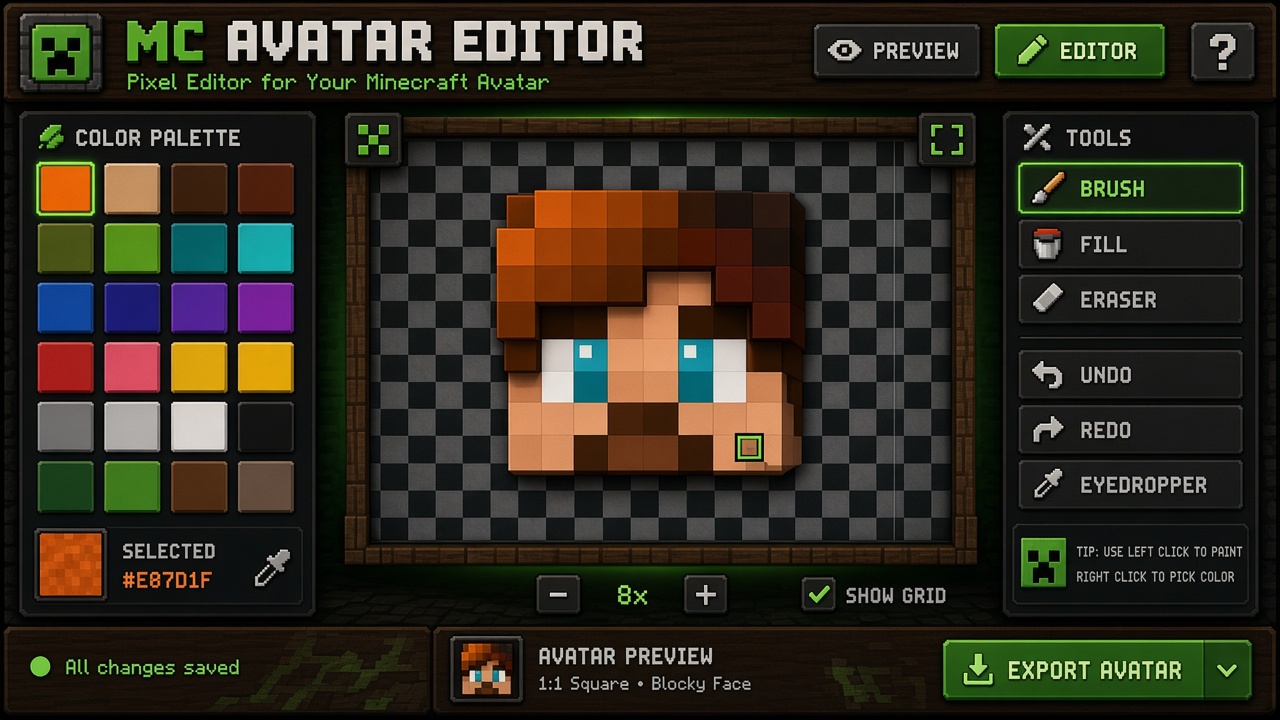
How to make a Minecraft PFP — FAQ
How to Make a Minecraft PFP
Jump into either free editor — same 16×16 head workflow, PNG export when you are ready.