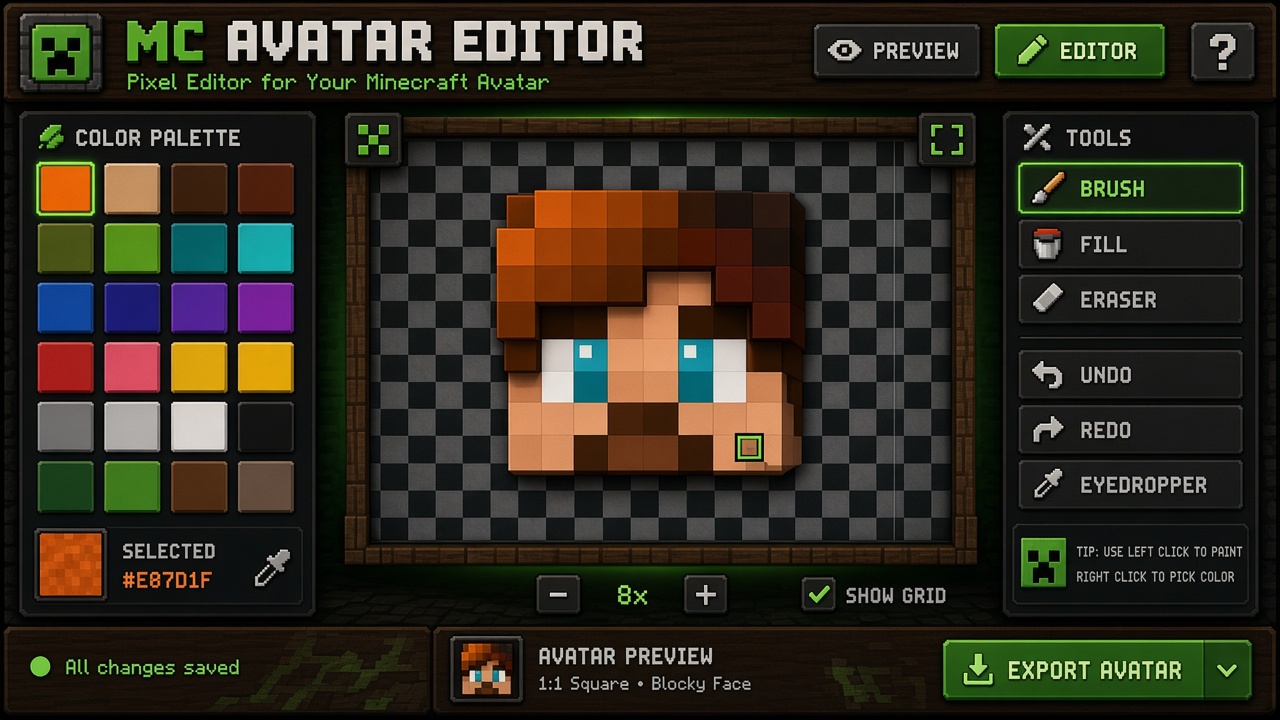
Classic Minecraft Avatar Editor
Create your pixel art Minecraft avatar on a classic 16×16 grid with Minecraft Avatar Maker. Select a color, paint cells for hair, eyes, and skin, then export or import your design. Prefer a blockier workspace? Try the MC Avatar Editor V2.
Classic and New editors share the same avatar data tools — pick the look you prefer.
Click or tap to paint. Use Clear to reset, Eraser to remove pixels, Save to store in your account, and Export/Import to download or reload your Minecraft avatar design.
When Classic fits the job
The Classic Minecraft avatar editor is a quiet 16×16 head canvas: pick a color, paint cells, export PNG. Use it when you want a profile face fast without Minecraft-styled chrome around the grid.
Discord, forums, and chat PFPs
A Classic head is a square face PNG for Discord, forums, or chat icons. Platforms scale the file down; the 16×16 grid forces hair mass, eye contrast, and skin tone decisions at thumbnail size instead of detail that disappears later.
Small-server identity cards
Communities often want a Minecraft-looking head beside a nickname. Classic gives a readable blocky face without a full-body skin studio. Export once and reuse the same PNG across Discord and related channels.
Quick experiments before V2
Try two silhouettes on Classic — short hair versus helmet rim — then pick a winner. Move into MC Avatar Editor V2 when you want fill, undo, and a blockier panel layout. Both edit the same kind of head data; Classic is the lighter sketchpad.
Teaching pixel faces
A minimal grid is easier to explain: sixteen by sixteen, one color at a time. Learners see quickly that eyes need contrast, hair needs an outline, and hollow cheek gaps look broken when Discord shrinks the image.
How Classic 16×16 fits profile use
Minecraft-style profile pictures succeed when the face still reads as a character at stamp size. Classic locks you to a 16×16 head grid so every cell is a real decision. Most apps display avatars small; they do not reward hair strands that only look good at full zoom.
Start with a solid skin fill, place eyes with a darker pupil against lighter sclera or skin, then add a hair or helmet silhouette that stays connected at the edges. Mid-tone outlines often survive dark Discord and light forums better than pure black comic strokes. If the face only works when enlarged, simplify before you export.
Classic is a head / face tool, not a full Minecraft skin UV editor. Export does not require a Mojang or Microsoft login; optional account save stores designs on this site. McAvatarMaker is an independent fan-made browser tool — not affiliated with Mojang or Microsoft — and not a place to paste official logos into avatars.
Classic canvas tips that improve exports
Block big shapes first.
Fill skin, then hair mass, then eyes. Speckles before the silhouette is settled turn into mud after resize.Protect eye contrast.
Pupils that match the skin vanish at Discord size. Leave a lighter or darker ring so the gaze holds when tiny.Avoid accidental hollows.
Transparent gaps in cheeks or forehead read as bugs. Prefer opaque face mass unless you are cutting a helmet opening.Use Clear and Eraser deliberately.
Clear resets an early failed sketch. Eraser fixes a hairline or cheek without repainting the whole face.Export when it still reads small.
Download PNG when the preview still looks like a character at thumbnail size. Keep a brighter and a darker variant if you use light forums and dark Discord.Import to continue later.
Export/Import reloads a previous Classic design. Pair with optional account Save when you want history on this site.
Classic Minecraft avatar editor FAQ
- Is the Classic editor free?
- Yes. Paint on the 16×16 grid and export a Minecraft head PNG free online. Optional sign-in can save history here; you do not need to pay to use the canvas or download.
- Does Classic create a full Minecraft skin?
- No. Classic focuses on a square head / face avatar. Full-body skins need a skin editor with body UVs. Use your Classic PNG as a head reference later if you expand the project.
- Classic or V2 — which should I open?
- Open Classic for a quieter grid and fast experiments. Open MC Avatar Editor V2 when you want a Minecraft-inspired layout with palette, brush, fill, undo, and stronger preview. Same head PNG job; different workspace.
- Will my PNG work as a Discord profile picture?
- Yes, if contrast and silhouette hold at small size. Export from Classic, upload the square PNG in Discord settings, and re-check after Discord crops. Simplify hair noise if the face turns muddy.
- Do I need a Mojang account?
- Not to paint or download from this Classic page. Mojang/Microsoft login is unrelated to exporting a fan-made head PNG from McAvatarMaker.
About this Classic editor page
This route is Minecraft Avatar Maker’s classic head editor: SSR copy documents the tool for readers and crawlers, while the interactive grid runs in the browser. Sections above cover profile use-cases, 16×16 fit, tips, and FAQ so the page is not a thin app shell.
Related paths include MC Avatar Editor V2, the Minecraft avatars gallery, keyword landings, and English blog guides on Discord readability and clean PNG export. Start painting above, or switch editors anytime — the product is the head PNG, not the panel theme.
Session habits on the quiet grid: treat Classic as a sketchpad for silhouette experiments, then move to V2 only if you want more chrome. Keep exports original — do not paste trademarks you do not own — and remember this is a fan-made browser tool independent of Mojang and Microsoft.
If you arrived from a keyword landing (Discord, PFP, cute, Steam, and similar), you are still in the same Classic canvas. Those pages explain intent; this page is where the pixels actually change. Export PNG when the face survives a thumbnail squint test.