McAvatarMaker
Minecraft Avatar Editor
The main free Minecraft Avatar Maker lives on the homepage — paint a 16×16 head, preview live, export PNG. For a step-by-step walkthrough, see how to make a Minecraft PFP. This page is an alternate search entry for the same tools (Classic + V2).
Open a Minecraft avatar editor in your browser. Choose the classic 16×16 grid or MC Avatar Editor V2 for a fuller tool strip, paint a blocky head, and export PNG when the preview looks right. Extra depth on this URL: brush/fill/undo habits, written for iterating a face until it sticks, with the same free paint-and-export path as our other Minecraft head landings.
Edit now — Classic grid or V2 workspace How-to guide · Classic editor
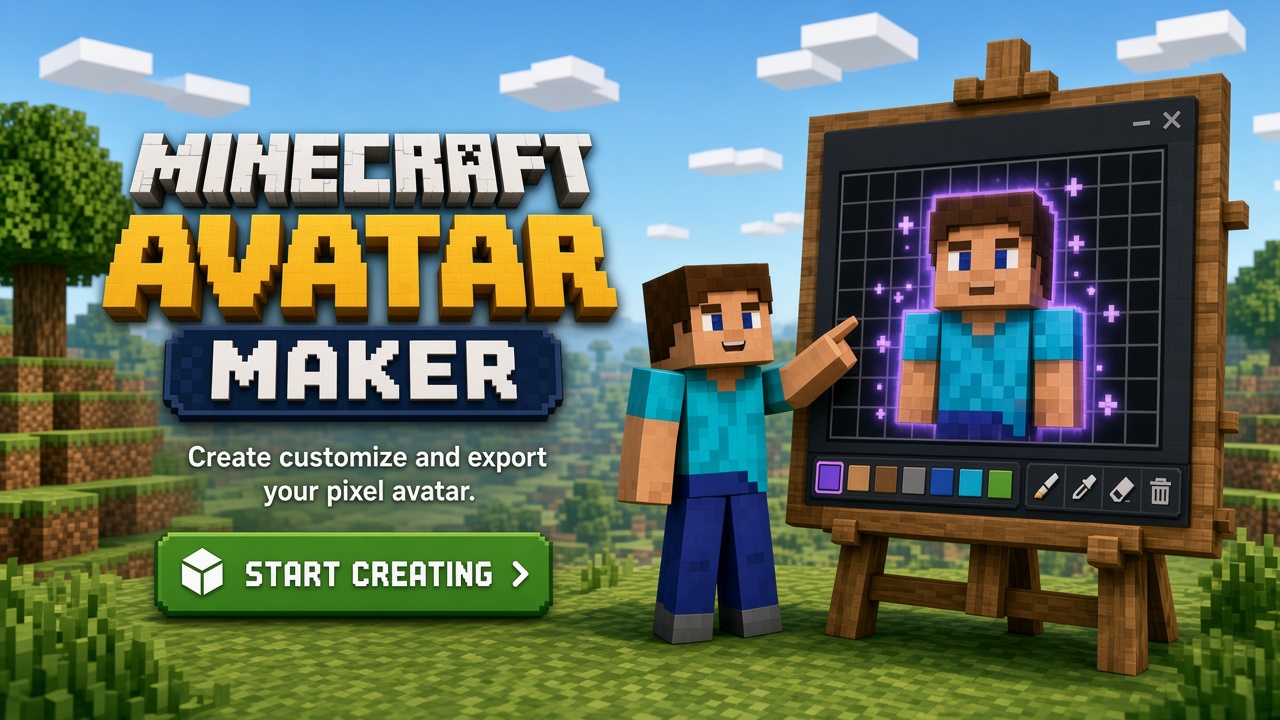
Two Minecraft avatar editors, one head format
People who search “minecraft avatar editor” want a place to edit pixels — not a gallery alone. This site offers two editors that share the same 16×16 head data: Classic for minimal chrome, and MC Avatar Editor V2 for palette, brush, fill, eraser, undo, and on-canvas preview.
You are choosing a workspace, not a different file format. Both export square head PNGs suitable for Discord, forums, and branding. Neither requires Mojang login to edit and download.
If you already know every pixel, Classic stays out of the way. If you are blocking hair masses or iterating eye colors, V2’s tools usually feel faster.
What MC Avatar Editor V2 adds
V2 wraps the head workflow in a Minecraft-inspired layout. Fill speeds large regions; brush places precise pixels; eraser and undo make experimentation safe. The live preview keeps small-size honesty in view while you edit.
Use V2 when you want an “editor” feel closer to a crafting UI. Use Classic when you want the grid alone. Jump between related maker pages anytime — CTAs still lead to the same two editors.
Editor habits that improve results
Lock a tiny palette before you chase detail. Export mid-versions so a bad pass does not erase a good face. Squint at the preview after every major change.
Compare Classic vs V2 once: many creators draft in V2, then finish micro eye tweaks in Classic. Either order is fine as long as contrast holds at icon size.
Avatar editor scope — head, not full UV
This Minecraft avatar editor edits the head / face layer. It is not a full-body skin UV studio. That honesty keeps the tool fast for PFPs and face-first work.
For in-game bodies, export the face here and continue elsewhere. For profiles, the head PNG is the deliverable.
Going deeper on avatar editor workspace
This avatar editor workspace page exists so searchers who typed that exact phrase land on honest instructions, not a thin app chrome. The canvas behind the CTAs is still the same free 16×16 Minecraft-style head editor (Classic or MC Avatar Editor V2). What changes here is the advice: brush/fill/undo habits, aimed at iterating a face until it sticks.
AdSense and human reviewers both flag cookie-cutter landings. So this section stays specific to avatar editor workspace: we talk about brush/fill/undo habits instead of pasting the same “What / Tips / Limits” paragraph used on sibling URLs. If another page on this site covers a nearby keyword, use the Related tools list — do not treat every landing as a duplicate product.
Practical workflow on this route: open Classic for a quiet grid or V2 for palette/fill/undo, block large shapes first, protect eye contrast, then export PNG when the square preview still reads at thumbnail size. Skip username→3D skin fetch claims — that is out of scope on McAvatarMaker and would be misleading advertising.
Limits stay honest for avatar editor workspace: you get a square head / face PNG, not a full-body skin UV, not Mojang login, and not a photo-to-pixel AI pipeline. Optional account save stores history on this site; export itself does not require payment. McAvatarMaker is an independent fan-made browser tool and is not affiliated with Mojang Studios or Microsoft.
When you finish a face for iterating a face until it sticks, keep a brighter and a darker PNG variant if you use both light forums and dark Discord/Twitch themes. Revisit the blog guides on Discord readability and 16×16 pixel tips if the export turns muddy after platform compression.
How to use the Minecraft avatar editor
-
Pick Classic or V2
Open Classic for a simple grid, or MC Avatar Editor V2 for the fuller tool strip.
-
Edit the 16×16 head
Paint skin, eyes, and hair. Use fill and undo in V2 when you need speed; Classic for single-pixel precision.
-
Preview while editing
Watch the square preview. Raise contrast or simplify if the face muddies at small sizes.
-
Export PNG
Download when ready. Optional account save does not block a first export.
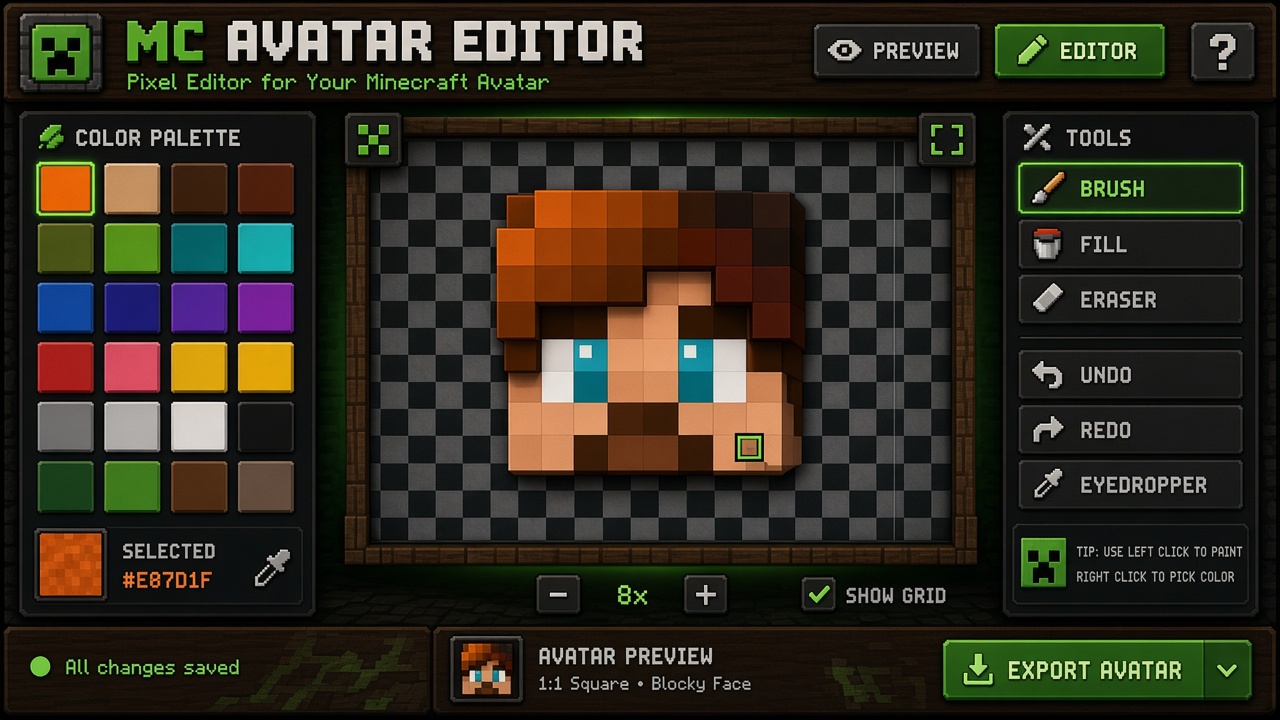
Minecraft avatar editor FAQ
Minecraft Avatar Editor
Jump into either free editor — same 16×16 head workflow, PNG export when you are ready.