McAvatarMaker
Create Minecraft Avatar
The main free Minecraft Avatar Maker lives on the homepage — paint a 16×16 head, preview live, export PNG. For a step-by-step walkthrough, see how to make a Minecraft PFP. This page is an alternate search entry for the same tools (Classic + V2).
Ready to create a Minecraft avatar from scratch? Open a free online editor, paint a 16×16 blocky head, and export PNG when it looks right. No client install — just a browser and a few minutes. Extra depth on this URL: blank grid discipline, written for finishing a first export, with the same free paint-and-export path as our other Minecraft head landings.
Create now — Classic grid or V2 workspace How-to guide · Classic editor
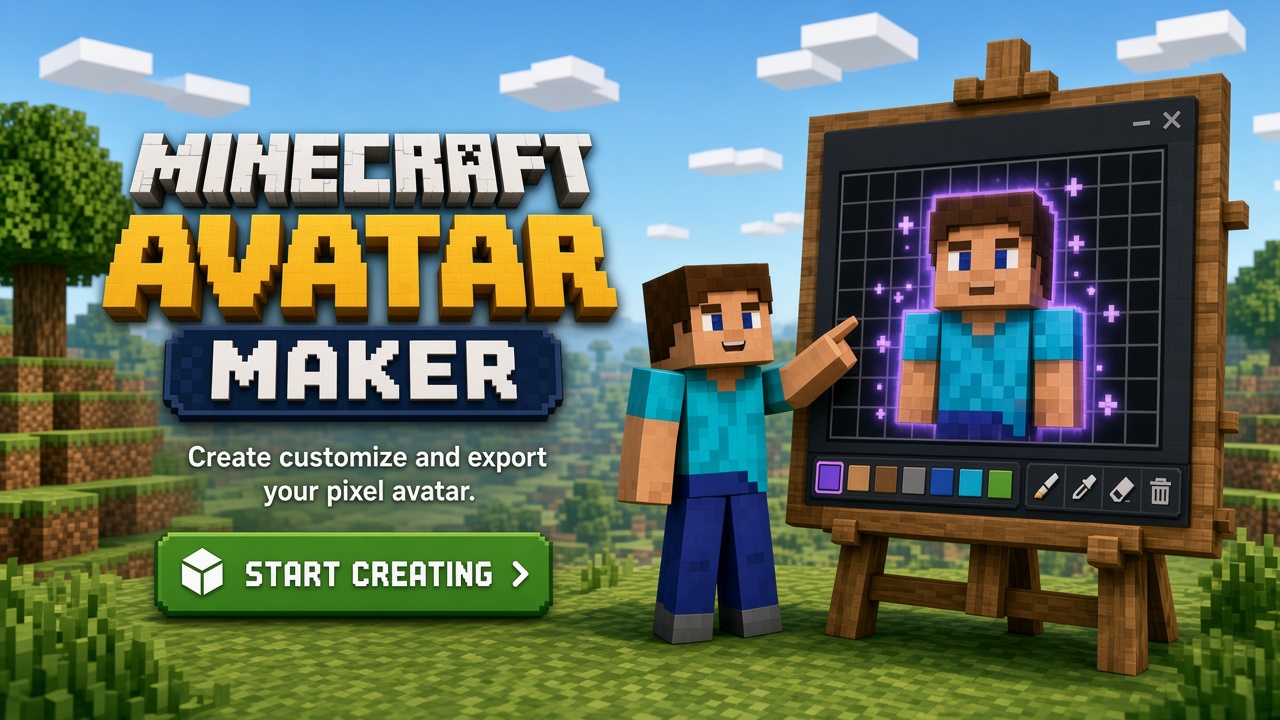
Start blank, finish with a shareable face
Creating a Minecraft avatar is a short loop: pick colors, place pixels, preview, adjust, export. This page exists for the “create minecraft avatar” intent — action-first, with clear links into both editors.
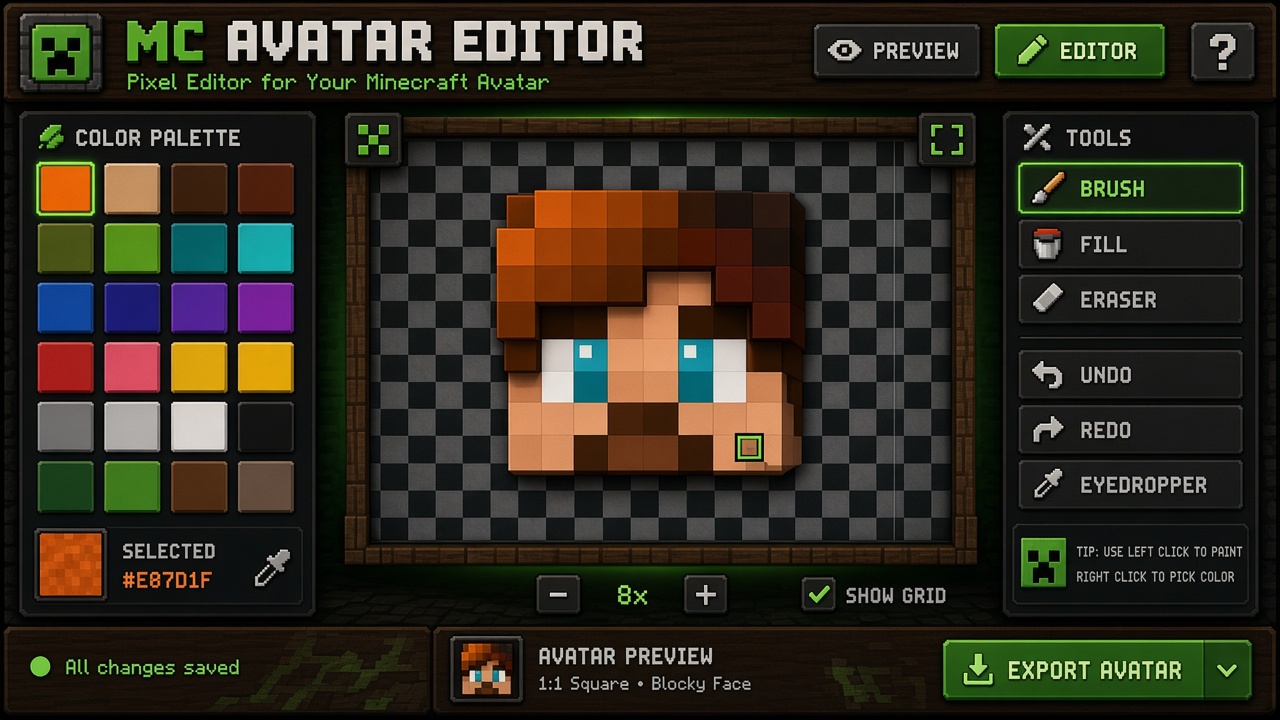
If you already know the look you want, jump straight into V2 for brush, fill, and undo. If you prefer a quieter canvas, use Classic. Either path creates the same kind of square head avatar — you are not choosing different file formats, only different UIs.
You do not need prior pixel-art experience. Begin with large blocks of color, then refine eyes and hair. The live preview keeps the result honest at small sizes so you do not over-detail a face nobody can read in chat.
Ideas before you create
Decide on a simple silhouette: short hair vs long, helmet vs bare head, bright vs muted palette. Consistency matters more than intricate detail on a 16×16 face. Write down three colors before you open the editor — skin, hair, accent — and stick to them for the first draft.
Mood shortcuts help: “friendly default,” “mysterious hood,” “bright streamer mascot,” “earthy survival look.” Pick one mood so every pixel decision has a reason. Browse public examples in the gallery if you need a spark, then return here to create your own Minecraft avatar instead of copying a full design.
After you create your Minecraft avatar
Export PNG and set it as a profile picture, or keep iterating in the editor. Signed-in users can save drafts. Related tools on this site cover skin-style faces, generators, and profile-picture focused pages if your next search is more specific.
A good first session ends with one “keeper” export and one experimental variant. Tomorrow’s you will thank today’s you for not overwriting the only good take.
Accounts and privacy expectations
You can create and export without a Mojang login and without a site account. Signing in here only unlocks save history on McAvatarMaker — it is not a Microsoft account bridge. Do not paste passwords or session tokens into the canvas; this is a pixel editor, not a launcher.
Going deeper on create-from-scratch flow
This create-from-scratch flow page exists so searchers who typed that exact phrase land on honest instructions, not a thin app chrome. The canvas behind the CTAs is still the same free 16×16 Minecraft-style head editor (Classic or MC Avatar Editor V2). What changes here is the advice: blank grid discipline, aimed at finishing a first export.
AdSense and human reviewers both flag cookie-cutter landings. So this section stays specific to create-from-scratch flow: we talk about blank grid discipline instead of pasting the same “What / Tips / Limits” paragraph used on sibling URLs. If another page on this site covers a nearby keyword, use the Related tools list — do not treat every landing as a duplicate product.
Practical workflow on this route: open Classic for a quiet grid or V2 for palette/fill/undo, block large shapes first, protect eye contrast, then export PNG when the square preview still reads at thumbnail size. Skip username→3D skin fetch claims — that is out of scope on McAvatarMaker and would be misleading advertising.
Limits stay honest for create-from-scratch flow: you get a square head / face PNG, not a full-body skin UV, not Mojang login, and not a photo-to-pixel AI pipeline. Optional account save stores history on this site; export itself does not require payment. McAvatarMaker is an independent fan-made browser tool and is not affiliated with Mojang Studios or Microsoft.
When you finish a face for finishing a first export, keep a brighter and a darker PNG variant if you use both light forums and dark Discord/Twitch themes. Revisit the blog guides on Discord readability and 16×16 pixel tips if the export turns muddy after platform compression.
Steps to create a Minecraft avatar
-
Open Classic or V2
Click a primary CTA below to create your Minecraft avatar in the editor that fits your style.
-
Lock a tiny palette
Choose skin, hair, and one accent color first. Extra colors come later if the face still needs them.
-
Paint the 16×16 head
Block skin tone, place eyes, add hair or accessories. Undo and eraser help you iterate safely.
-
Preview, save, export
Check the square preview, optionally save to your account, then download PNG. Repeat for a second variant if you like.
Create Minecraft avatar FAQ
Create Minecraft Avatar
Jump into either free editor — same 16×16 head workflow, PNG export when you are ready.